
Approval, Sending & Results
Last updated September 29, 2026
Once you click Submit campaign for approval, the campaign moves through review, sending and measurement. This page covers each stage, what you can do at each one, and what can stop a campaign from sending.
The Review step shows the same stages under What happens next?:
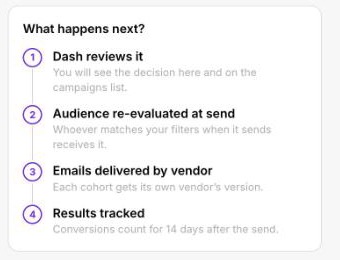
- Dash reviews it: the Dash team checks the campaign before anything is sent. You'll see the decision on the campaign and in the campaign list.
- Audience re-evaluated at send: your filters run again at send time, and whoever matches then receives it (see Who Receives Your Campaign).
- Emails delivered by vendor: each vendor's recipients get their own version of the email.
- Results tracked: opens, clicks, bounces and unsubscribes are recorded, and conversions are counted for the conversion window you set.
Awaiting review
The Dash team reviews every campaign: the audience, template, variable mappings, sender and timing. Include a clear Campaign Description so the reviewer knows what the campaign is for.
What can happen next:
| Outcome | Result |
|---|---|
| Approved | The status changes to Scheduled |
| Rejected | The status changes to Rejected, with the reviewer's reason |
| You click Withdraw request | The campaign goes back to Draft so you can edit it |
| You click Cancel campaign | The campaign is Canceled and will never send |
Rejected
A rejected campaign shows a red banner with the reason: either "Rejected by the Dash team", or "Rejected automatically before sending" when something broke (see What can stop a campaign).
Click Reopen and edit to return it to Draft, fix the problem, then submit it again. You'll need to tick the compliance confirmation on the Content step again.
Scheduled
The campaign is approved and waiting to send.
- Send on approval campaigns send within a few minutes of approval.
- Scheduled campaigns send at the time you chose, in the time zone you chose.
You can still stop it:
- Withdraw from schedule returns it to Draft. Edit it and resubmit; it has to be approved again.
- Cancel campaign stops it permanently. Canceling can't be undone. The campaign stays in the list, marked Canceled.
Sending
Dash rebuilds the recipient list from your filters, fills in each recipient's variables, and hands the emails to SendGrid for each vendor group.
- Send directly: emails go out in batches through your SendGrid account.
- SendGrid Marketing Campaign: Dash creates a contact list and a Single Send for each vendor group in your SendGrid Marketing account. If you chose Delete the contacts from SendGrid after the send, they're removed afterwards.
If a send fails partway through because of a temporary error, Dash retries it automatically. People who were already sent the email are never sent it again.
What can stop a campaign
Just before sending, Dash checks the campaign again. If something has changed since it was reviewed, the campaign is rejected automatically and the reason is shown, so nothing goes out that the reviewer didn't see.
| Problem | Fix |
|---|---|
| The template changed after review. Someone edited the SendGrid design or Dash template. | Reopen, check the mappings (refresh variables), and resubmit. Avoid editing a template while a campaign that uses it is waiting to send. |
| The template was deleted or deactivated | Restore it or choose another template, then resubmit |
| A variable is no longer mapped. A new variable was added to the template. | Map it on the Content step and resubmit |
| The send time passed by more than two hours (for example, it was approved late) | Pick a new send time and resubmit |
| The email integration or sender is no longer valid. The bulk integration was turned off, or the sender isn't allowed. | Ask your admin to fix Settings › Email Integration, then resubmit |
After sending: Measuring and Complete
When the emails have gone out:
- Promotional campaigns that track conversions move to Measuring. Dash watches for conversions (a visit, a visit during your event window, a new monthly subscription, or a promo code redemption) for the conversion window you set on the Define step.
- Operational campaigns, and campaigns set to Don't track conversions, move straight to Complete.
For every recipient Dash records whether the email was delivered, opened (and how often), clicked (and how often), bounced, marked as spam or used to unsubscribe. Unsubscribes, spam reports and hard bounces opt the person out of future promotional email automatically.
Quick reference: what you can do in each status
| Status | Edit | Actions available |
|---|---|---|
| Draft | Everything | Save draft, Submit campaign for approval, Cancel campaign, Delete |
| Awaiting review | Name and description only | Withdraw request, Cancel campaign |
| Rejected | Name and description only | Reopen and edit |
| Scheduled | Name and description only | Withdraw from schedule, Cancel campaign |
| Sending | Name and description only | None, unless nothing has been released yet (Cancel) |
| Measuring / Complete / Canceled | Name and description only | None |
Was this page helpful?