
Campaign Builder
Last updated September 29, 2026
Campaign Builder is where you build a one-off email campaign to a targeted audience of parkers or leads. You choose the locations the campaign is for, filter the audience, pick an email template and fill in its variables, and decide when it sends. The Dash team then reviews it. Once they approve it, it goes out on schedule and Dash tracks what happens next.
Campaign Builder is for single sends, such as a game-day promotion, a reactivation push or a lot-closure notice. To send an email automatically every time something happens (a form submission, a first transaction), use Triggers instead.
In this section
- Setting Up a Campaign: the five builder steps, field by field
- Who Receives Your Campaign: how the audience becomes a recipient list, opt-outs, and vendor routing
- Approval, Sending & Results: what happens after you submit
For a worked example, see Championship Football Game (Single Send).
Before you start
Several things have to be in place before a campaign can send. Most are one-time setup done with the Dash team.
| Requirement | Where it's set | Who sets it |
|---|---|---|
| Campaign Builder is enabled for your organization | Organization entitlements | Dash team |
| A SendGrid integration with Bulk email (campaigns) turned on | Settings › Email Integration | Your admin (needs the Manage credentials permission) |
| At least one campaign-ready email template: a SendGrid (Marketing) design or a template built in Dash | Settings › Email Templates | Dash assigns SendGrid designs; your team builds Dash templates (if hosted templates are enabled) |
| A sender identity you're allowed to send from | Email Integration / Dash team | Dash team |
| Booking links on each location's Vendors tab (only if your template contains a booking link) | Location › Vendors | Your team |
Who can do what
| Role | Campaign Builder access |
|---|---|
| Admin | View, create, edit, submit, cancel and delete drafts |
| Editor | View, create, edit, submit, cancel and delete drafts |
| Read Only | View campaigns only |
| Analyst | No access |
Every campaign is reviewed and approved by the Dash team before it sends. Campaigns belong to the whole organization, so anyone with access sees every campaign regardless of which locations they're assigned to.
Where to find it
Open Marketing › Campaign Builder in the left sidebar.
There are two other ways to start a campaign:
- From the Customers dashboard. After filtering customers, click Create campaign from filters. The builder opens with those filters already applied as the audience.
- From a saved audience. In Audience Builder, Request campaign sends your team a request with a reason and optional comments. Your team can then action or decline it.
The campaign list
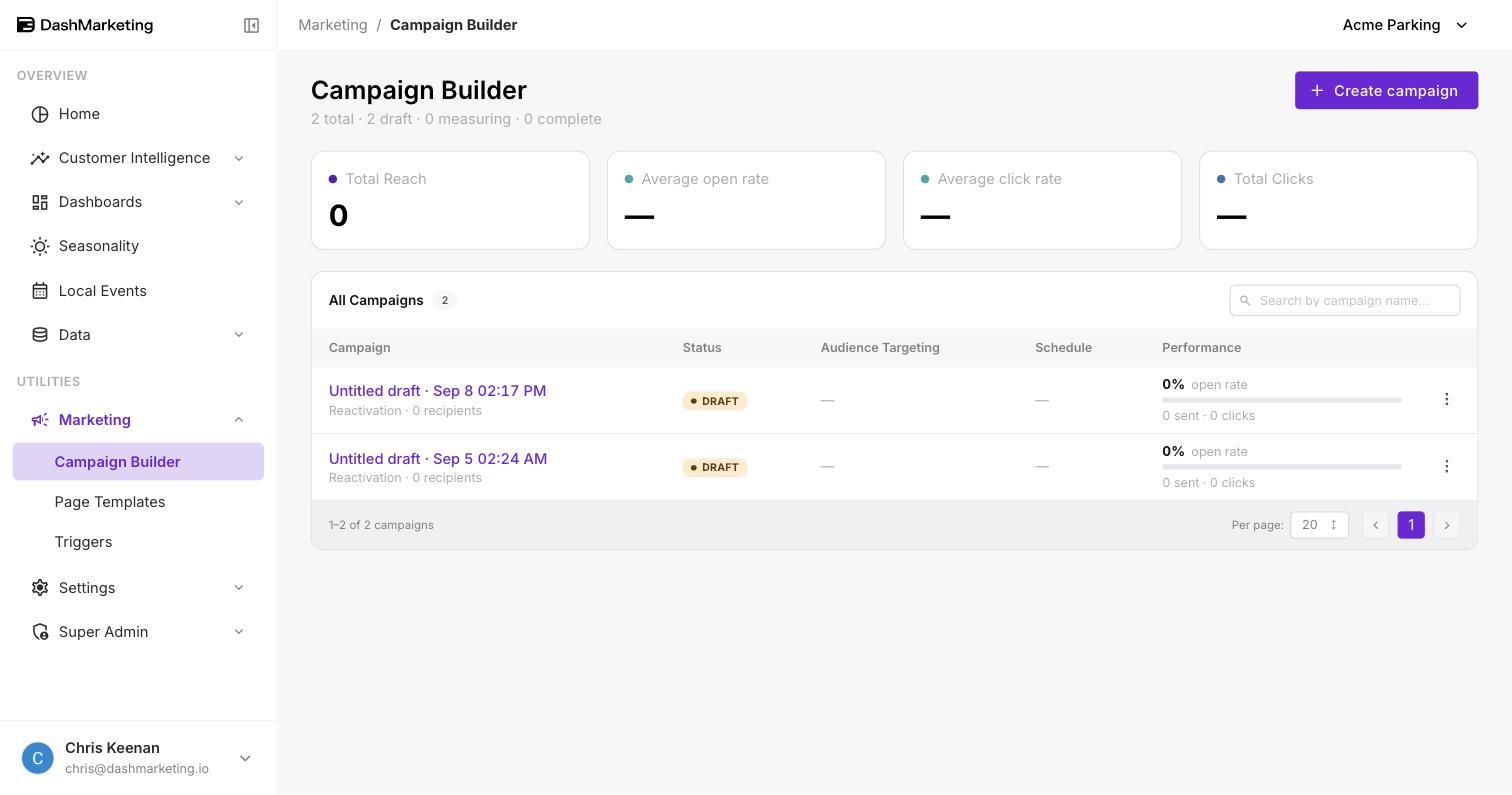
The top of the page shows how many campaigns you have and how they break down: "12 total · 3 draft · 2 measuring · 7 complete". Create campaign (top right) opens the builder.
Summary cards: Total Reach, Average open rate, Average click rate, Total Clicks.
All Campaigns table, searchable by campaign name:
| Column | What it shows |
|---|---|
| Campaign | Name, with the goal and recipient count underneath. Unnamed drafts show as Untitled draft with the date they were created. |
| Status | Where the campaign is in its lifecycle (see below) |
| Audience Targeting | The audience filters, as chips |
| Schedule | Send date and time |
| Performance | Open rate, with sent, click and conversion counts |
Click a row to open the campaign. The ⋮ menu offers Delete, which is only available for drafts and can't be undone.
Campaign statuses
A campaign normally moves Draft → Awaiting review → Scheduled → Sending → Measuring → Complete. It can be rejected while awaiting review or scheduled. Reopen and edit returns it to Draft.
| Status | Meaning |
|---|---|
| Draft | Being built. Only drafts can be edited or deleted. |
| Awaiting review | Submitted and waiting for the Dash team to approve it |
| Rejected | Sent back by the Dash team with a reason, or rejected automatically because something broke before sending. Reopen it to fix and resubmit. |
| Scheduled | Approved. Sends at the scheduled time, or straight away if you chose Send on approval. |
| Sending | Emails are being handed to SendGrid |
| Measuring | Sent. Conversions are being tracked for the campaign's conversion window. |
| Complete | Sent and finished. Operational campaigns, and campaigns that don't track conversions, go straight here after sending. |
| Canceled | Stopped before it sent. Stays in the list for the record. |
Not available yet
- SMS campaigns. The SMS channel is shown as Coming soon. Email is the only channel.
- Send test. The button appears on the Review step but is disabled. Use Preview to check each vendor's version of the email.
- Duplicate, pause and resend. To send a similar campaign again, create a new one. Picking the same saved audience keeps the filters identical.
Was this page helpful?