
Building Form Fields
Last updated September 16, 2026
This guide covers the "Build Fields" tab in the Form Designer, where you assemble the fields visitors fill in. Fields render in order in the mobile preview and on the public form, and each one saves immediately when added or edited.
Step 1: Use "Quick Add Common Fields" for the standard set. Each button adds a pre-configured field: First Name, Last Name, Email, Phone Number, Company Name, Parking Timeline ("When do you need parking?" with ASAP / 1 - 2 Weeks / Not Sure) and Number of Spaces ("How many spaces do you need?" with Just 1 / 2 or more). For a Monthly Parking form add, in order: First Name, Last Name, Email, Phone Number, Parking Timeline, Number of Spaces, Company Name.
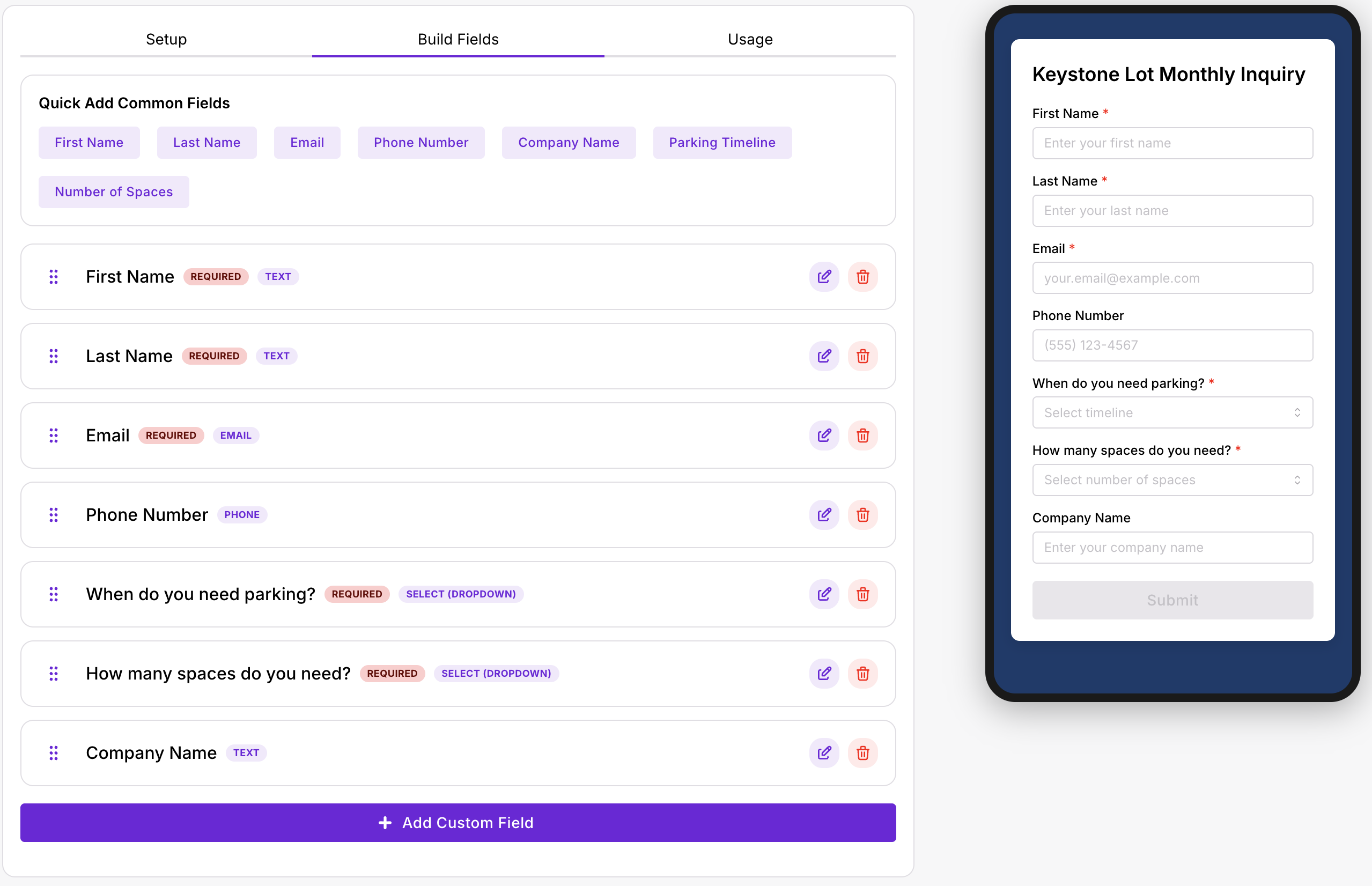 Step 2: Click "Add Custom Field" to build anything else. Pick a field type first, then configure it.
| Field type | Renders as | Notes |
|---|---|---|
| Text | Single-line input | |
| Email input | The only type the lead builder reads the lead's email from. Every form that should create leads needs exactly one. | |
| Phone | Phone input | Read as the lead's phone number. |
| Text Area | Multi-line input | Feedback, comments. |
| Select (Dropdown) | Single-choice dropdown | Needs Options. |
| Multi-Select | Multi-choice dropdown | Needs Options. |
| Radio Buttons | Single choice, all options visible | Needs Options. |
| Checkbox | One checkbox per option, any number selectable | Needs Options. |
| Date | Date picker | |
| Number | Numeric input |
Step 3: The Configure Field dialog holds Label (required, shown above the field), Placeholder (hint text inside the field), Help Text (shown under the field), a Required Field toggle, Semantic Type (see below), and for Select, Multi-Select, Radio and Checkbox types an Options list where you add one option per row. Click "Create Field" (or "Update Field" when editing).
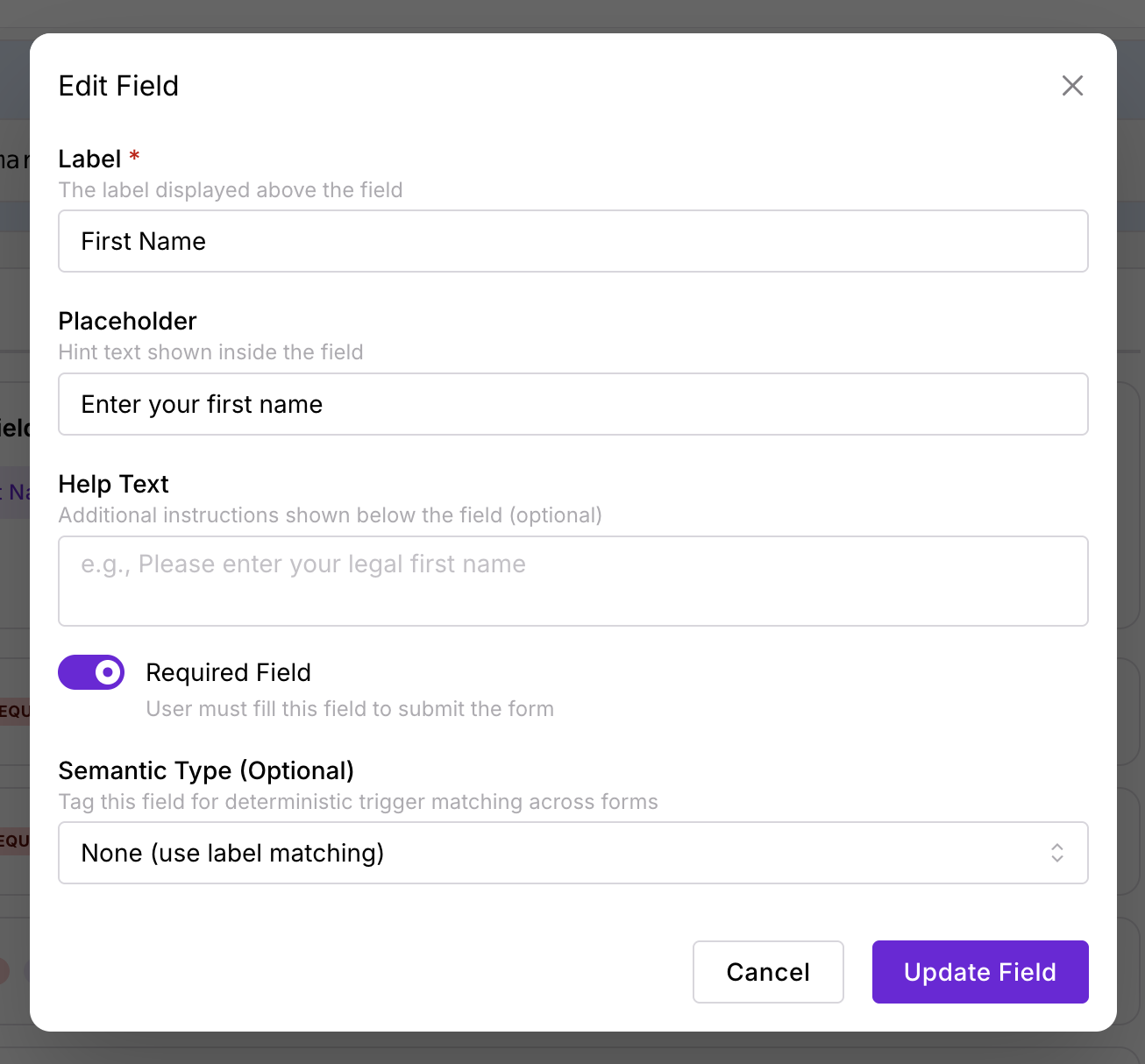 Step 4: Reorder fields by dragging the grip handle; the new order saves immediately. Use the pencil icon to edit a field and the trash icon to delete it. Deleting a field does not delete past submissions, but their value for that field will no longer have a label in the submissions view.
How field labels feed the Lead
When "Create a lead on submission" is on, Dash builds the lead from the fields by looking at field type and words in the label, not the field's position. If you rename a quick-add field, keep the keyword or the lead will lose that value:
| Lead property | Taken from |
|---|---|
| The first Email-type field. No Email field means no lead. | |
| First Name | The first Text field whose label contains "first" |
| Last Name | The first Text field whose label contains "last" |
| Phone | The first Phone field, otherwise a Text field whose label contains "phone" |
| Company | The first Text field whose label contains "company" |
| Number of Spaces | The first Select, Multi-Select or Radio field whose label contains "space" |
| Estimated Start Date | The first Select, Multi-Select or Radio field whose label contains "when" or is the Parking Timeline field |
| Everything else | Stored on the lead as metadata keyed by the field's label, visible in the lead detail |
So "When do you need parking?" populates Estimated Start Date on the lead, but "Start date" would not. Number of Spaces and Estimated Start Date show "-" on the lead when no matching field exists.
Semantic Type (trigger matching)
Triggers that reply to a submission (for example an autoresponder using {{EMAIL}} or {{FIRST_NAME}}) need to find the right field on whichever form fired. They look for a field tagged with the matching Semantic Type first, and only if none is tagged do they fall back to guessing from the label. The options are Email, First Name, Last Name, Phone, Company, Address, Spaces (Parking), Timeline, Category and Comments.
Set a Semantic Type whenever a custom field has an unusual label, or when a form has two fields that could both match (for example "Billing email" and "Contact email"). The quick-add fields have conventional labels and match by fallback without tagging, but tagging them is harmless and makes the behaviour deterministic across forms. The label fallbacks, for reference: Email matches an Email-type field or a label containing "email"; First Name "first"; Last Name "last"; Phone a Phone-type field or "phone"; Company "company"; Address "address"; Spaces "space"; Timeline "when" or "timeline"; Category a choice field whose label contains "better", "category" or "rating"; Comments a text field whose label contains "happened", "comment" or "tell us".
Recommended field sets
| Form Type | Fields |
|---|---|
| Monthly Parking / Flex Daily | First Name, Last Name, Email, Phone Number, Parking Timeline, Number of Spaces, Company Name |
| Contact Us / Promotions | First Name, Last Name, Email, Phone Number, then a Text Area for the message |
| Reputation Management | Email, a Multi-Select "What could we have done better?" tagged Category, a Text Area "Tell us what happened" tagged Comments; turn "Create a lead on submission" off |
| Check-in | First Name, Last Name, Phone Number, plus a Date or Select for the visit; lead creation off |
Was this page helpful?