
Creating a New Form
Last updated September 16, 2026
This guide walks through creating a brand-new form in Dash Forms, from the dashboard list to landing in the Form Designer.
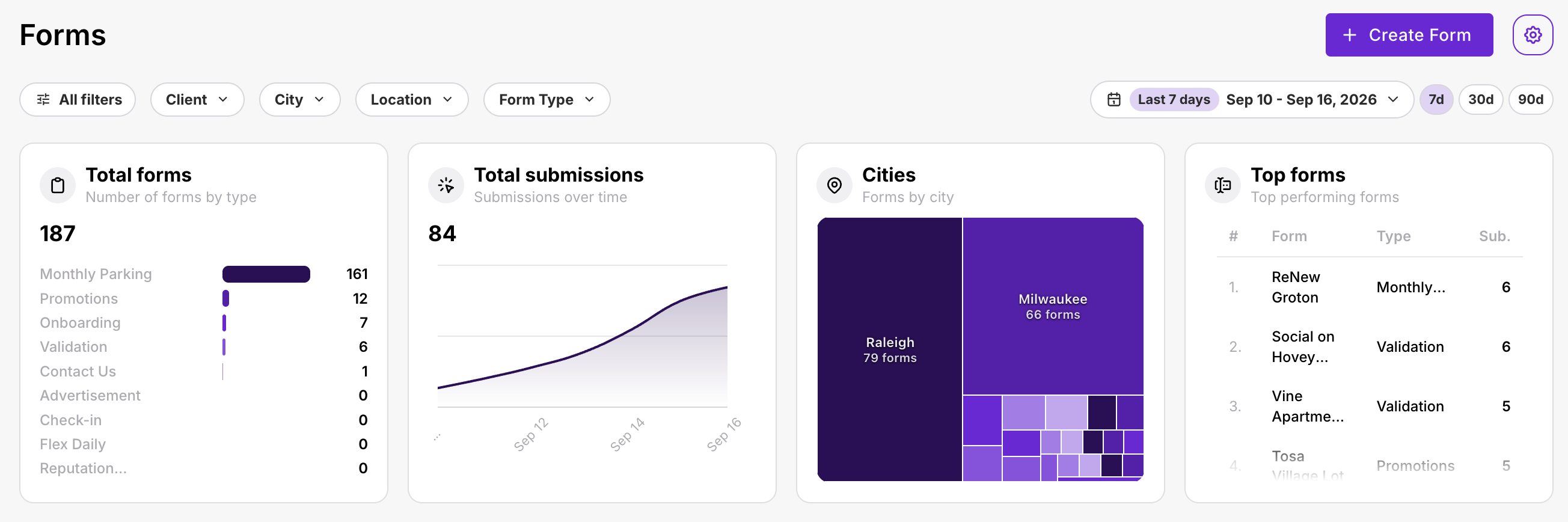
Step 1: From Data → Forms, review the dashboard (stats for Total Forms, Submitted, Cities, and Top Forms, plus a searchable table of all existing forms), then click the "+ Create Form" button in the top-right corner. The filter bar above the cards scopes everything by Client, City, Location, Form Type and a date range (7 / 30 / 90 day presets).
 Step 2: The "Create New Form" panel opens. Fill in Form Name (internal name, ideally the location plus what the form is for, e.g. "Keystone Lot Monthly Parking"). As soon as you start typing, a Form URL (slug) field appears, auto-generated from the name and validated for availability as you type. Choose a Form Type (required, see the table below), and optionally a Location.
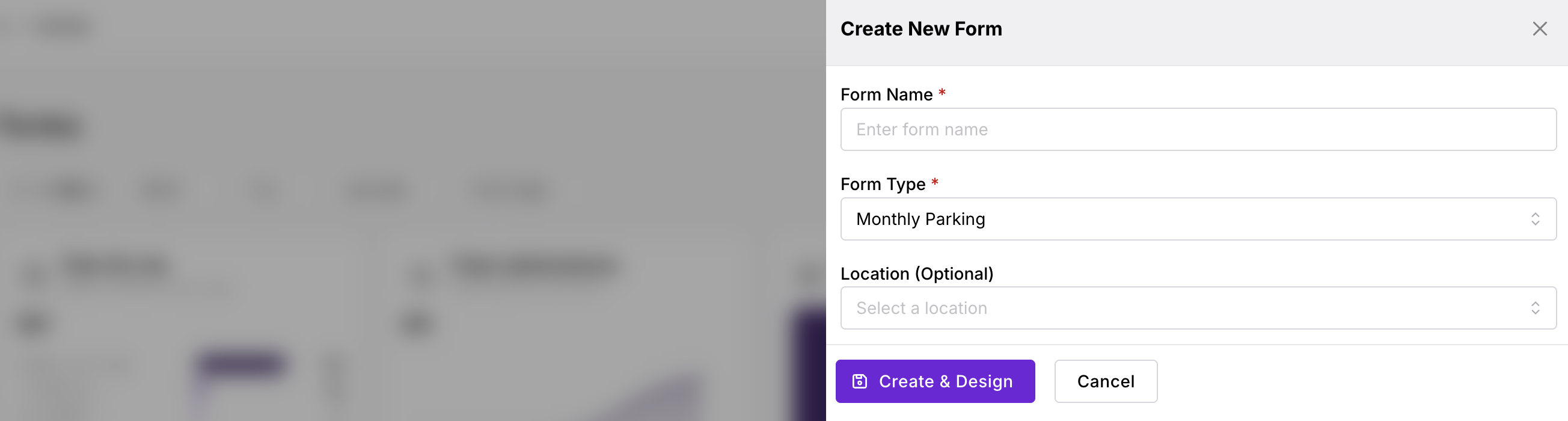 Step 3: Once all required fields (marked *) are filled in, click "Create & Design" to save the form and continue, or "Cancel" to discard it.
Notes: after clicking "Create & Design," the new form is saved immediately and you're taken straight to the Form Designer for that form, which has three tabs - Setup, Build Fields, and Usage - covered in the next three guides. Unlike Pages, a new form starts live (its status toggle is on), but it has no fields yet, so nothing can be submitted until you build it.
Choosing a Form Type
Form Type is the category Dash uses to group forms on the dashboard, filter the Forms table, and target triggers ("fire for every Monthly Parking form"). It is required and can be changed later from the Setup tab. The available types are:
| Form Type | Use it for |
|---|---|
| Monthly Parking | Monthly parking subscription enquiries and enrollments. Pair with Lead Type = Monthly. |
| Flex Daily | Flexible daily parking requests. Pair with Lead Type = Flex Daily. |
| Promotions | Sign-ups for limited-time promotions and discount offers. |
| Advertisement | Leads from advertising campaigns and paid media. |
| Check-in | On-site check-ins for visits, events or appointments. |
| Validation | Issuing and tracking parking validations for customers and guests. |
| Onboarding | Onboarding new customers, tenants or users with required details. |
| Reputation Management | Review and feedback requests. Usually with "Create a lead on submission" turned off. |
| Contact Us | General contact and enquiry forms. |
Pick the type by what the submission is, not where it lives. A monthly parking enquiry embedded on a promo page is still Monthly Parking.
Should you set a Location now?
Location is optional at creation. Set it when the form belongs to one location (the usual case for a monthly parking or validation form). Leave it blank when the same form will be embedded on Dash Pages for several different locations, because each page then supplies its own location at submission time. See "Location" in the Setting Up a Form guide for exactly how this affects submissions, leads and triggers.
Was this page helpful?