
Creating a New Page
Last updated August 26, 2026
This guide walks through creating a brand-new page in Dash Pages, from the dashboard list to landing in the Page Designer.
Step 1: From Data → Pages, review the dashboard (stats for Pages, Views, Clicks, and Top views by location, plus a searchable/filterable table of all existing pages), then click the “+ Create Page” button in the top-right corner.
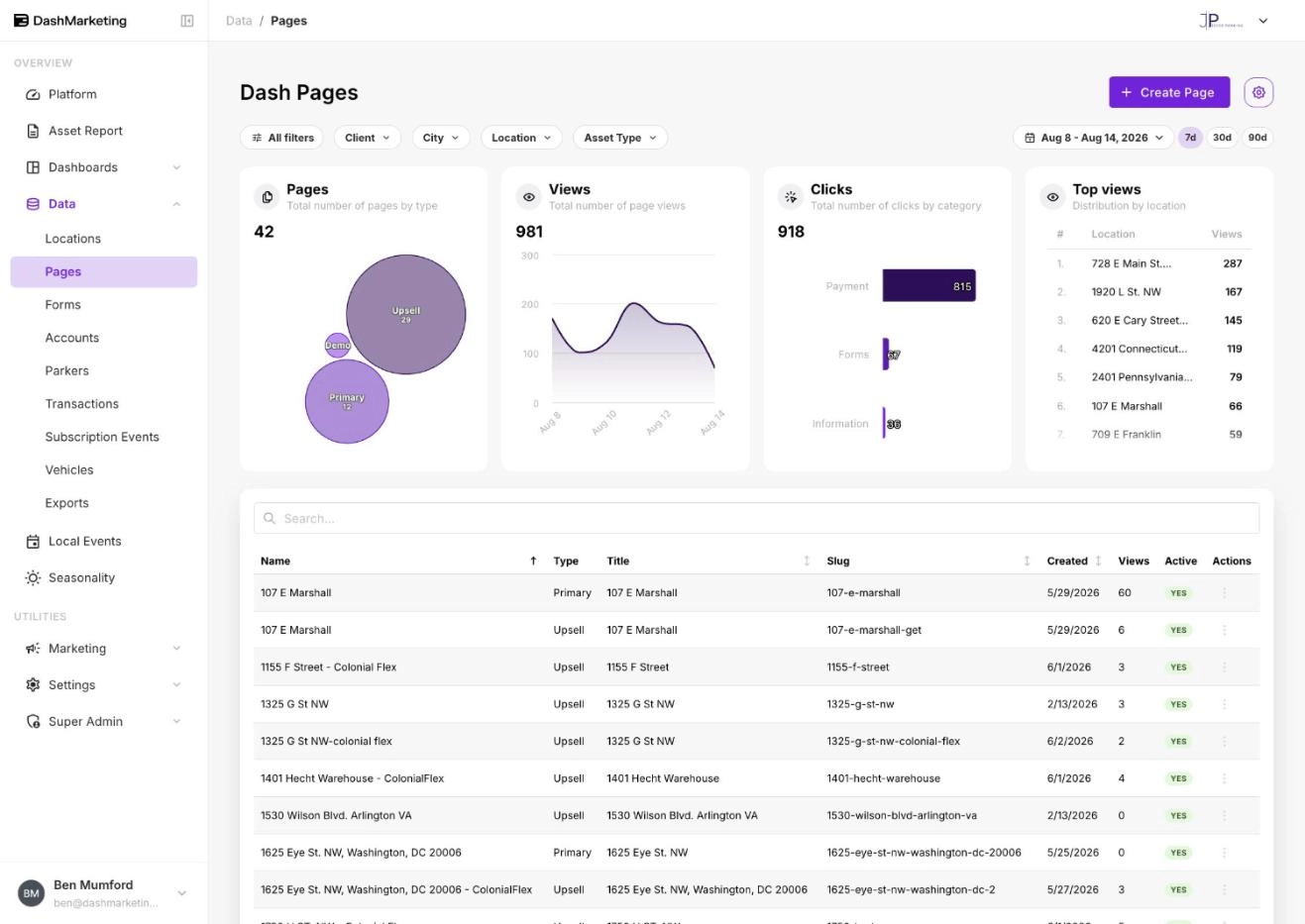 Step 2: The “Create New Page” panel opens. Under Location, choose the location this page will be associated with (this pre-fills information and helps organize your pages). Under Basic Information, fill in Page Name (internal name & browser title), Page Title (customer-facing page title), Page URL (slug - validated automatically as you type), and an optional Description for SEO.
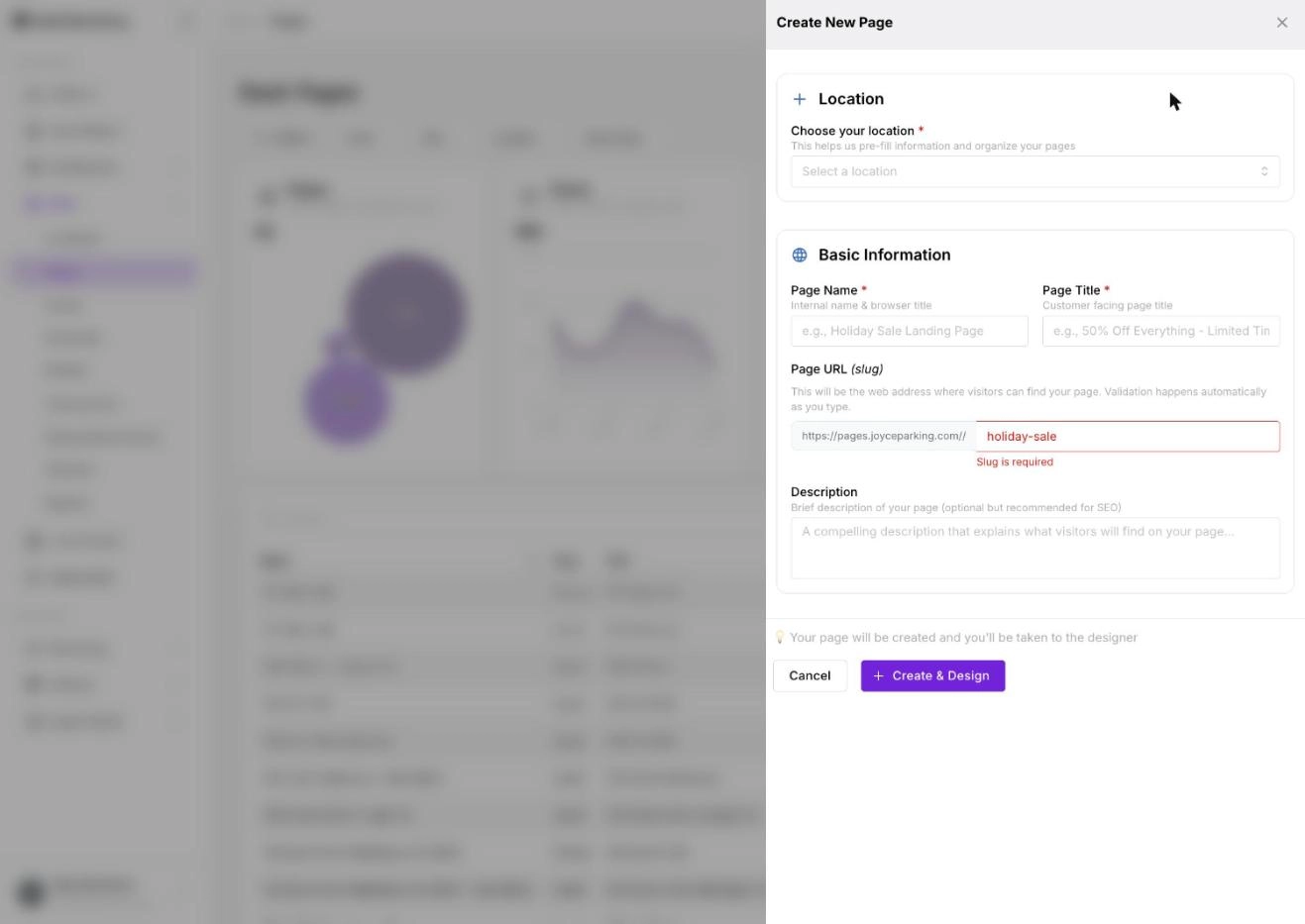 Step 3: Once all required fields (marked *) are filled in, click “Create & Design” to save the page and continue, or “Cancel” to discard it.
Notes: after clicking “Create & Design,” the new page is saved immediately and you’re taken straight to the Page Designer for that page, which has three tabs - Setup Your Page, Design Your Page, and Build Your Page - covered in the next three guides. The page starts private by default and is not accessible to visitors until its status is toggled to live from the Setup tab.
Was this page helpful?