
Disclaimers
Last updated August 29, 2026
DisclaimersA disclaimer is a short note that sits on top of a dashboard. Use one when the numbers need context — a data source is down, a migration is running, a month is still being checked.
Viewers can collapse a disclaimer, but they cannot remove it. It stays until you turn it off.
What viewers see
You choose one of two looks:
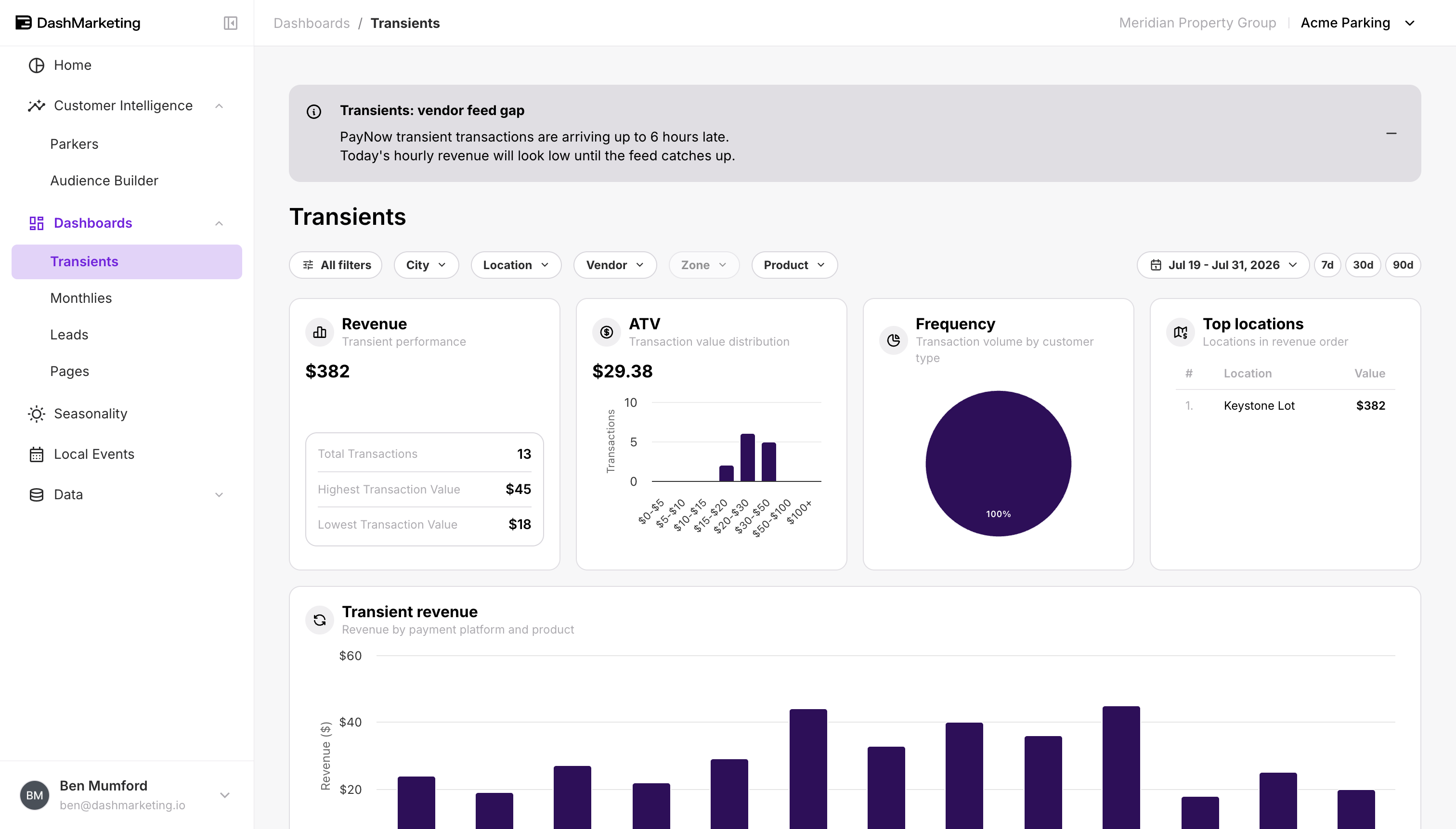
- Banner — a wide panel above the page title, showing your full note.
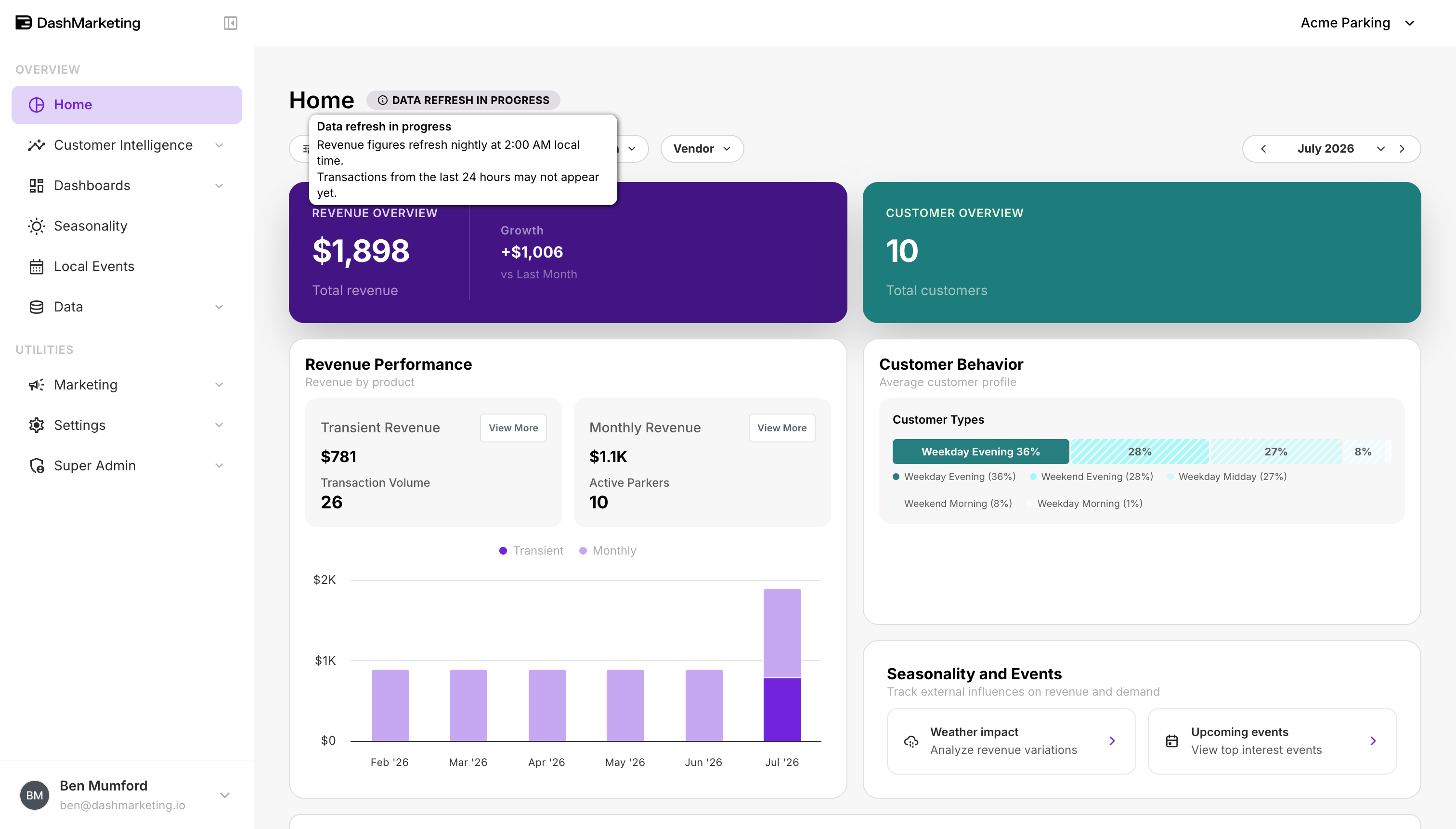
- Badge + tooltip — a small pill next to the page title. Hovering it shows the note.
The pill shows your Title in capitals, like DATA REFRESH IN PROGRESS. If you leave the Title blank, it just says Disclaimer.
 ## Letting viewers collapse it
Turn on Let viewers minimize it and the banner gets a — button. Clicking it shrinks the banner down to the badge.
Default state decides what a viewer sees the first time: a full banner, or the small badge.
Once someone collapses a disclaimer, it stays collapsed for them everywhere, on any device. It does not reset when they move to another dashboard.
Where you can add a disclaimer
There are three levels, and they work top to bottom. Set one at the top and it applies everywhere. Set one further down and it replaces what the level above was showing.
| To set a disclaimer for | Go to |
|---|---|
| Everything in your organization | Settings → My Organization → Disclaimers |
| One client | Settings → Clients → client → Disclaimers |
| One location | Data → Locations → location → Disclaimers |
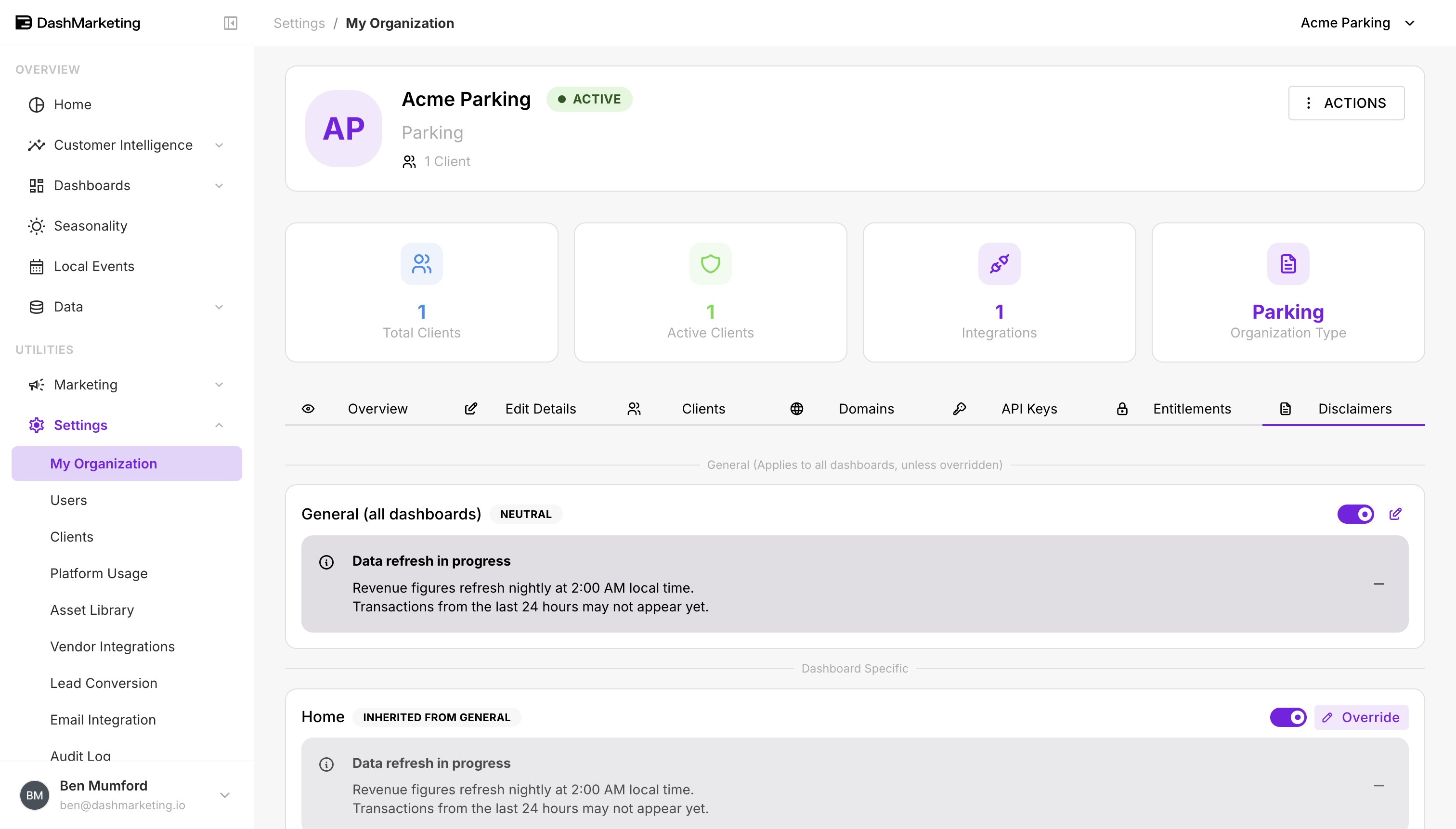
 Each of those three pages looks the same. At the top is General (all dashboards), and below it a Dashboard Specific list where you can set a different note for a single dashboard.
 ## Your whole organization
This is your default. It shows on every dashboard unless something further down replaces it. Start here.
Go to Settings → My Organization → Disclaimers.
Next to General (all dashboards), click Add.
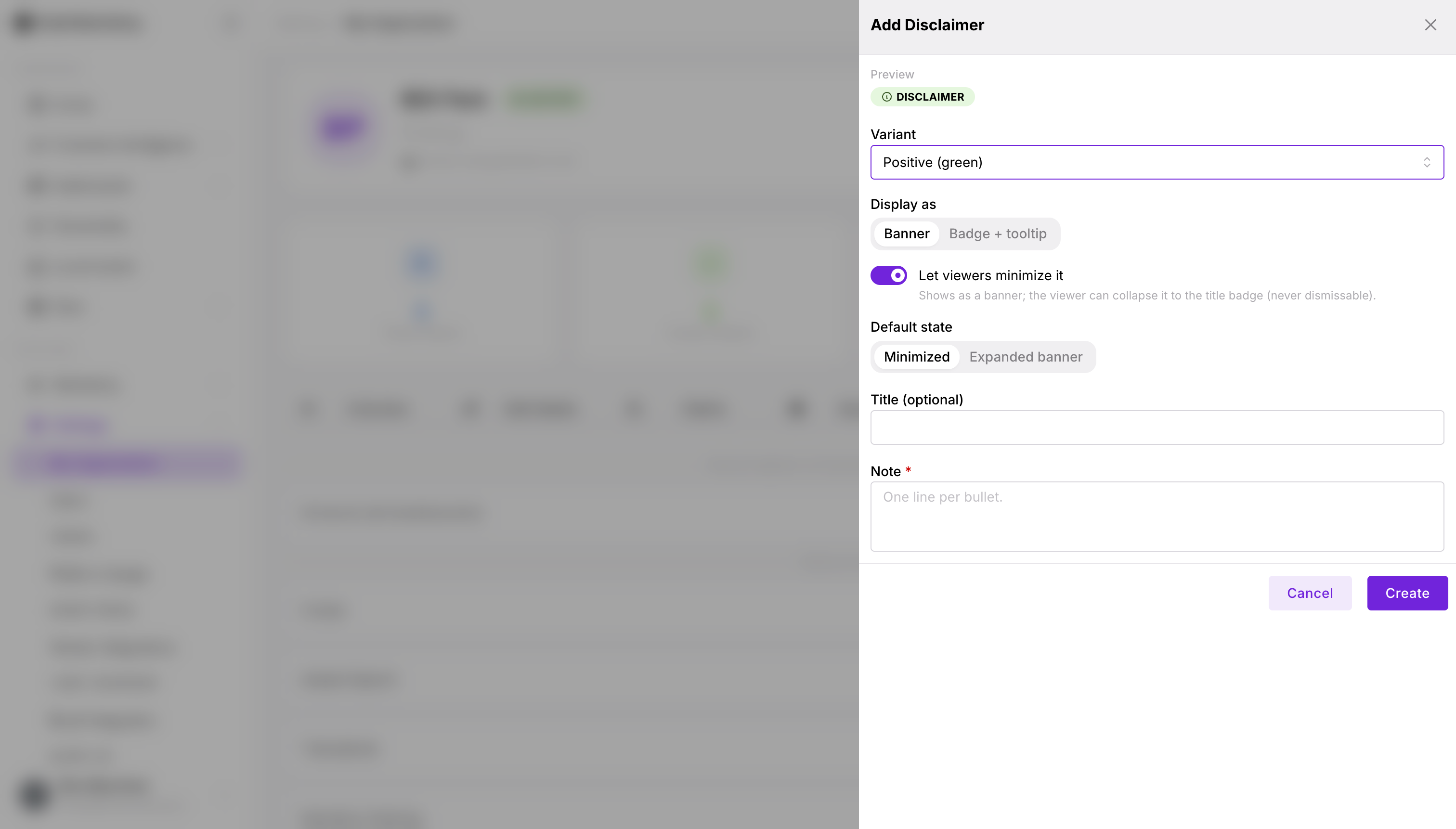
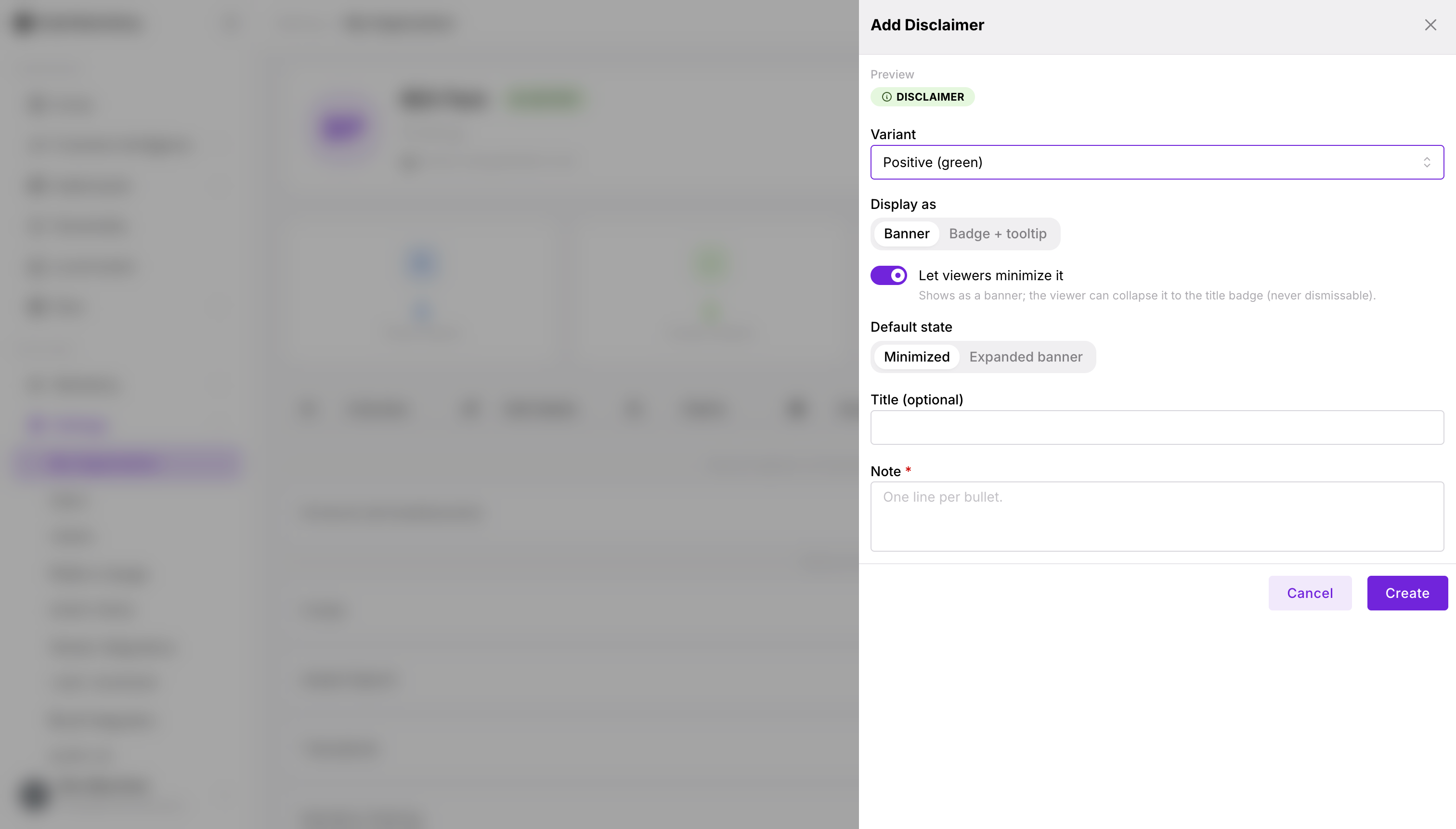
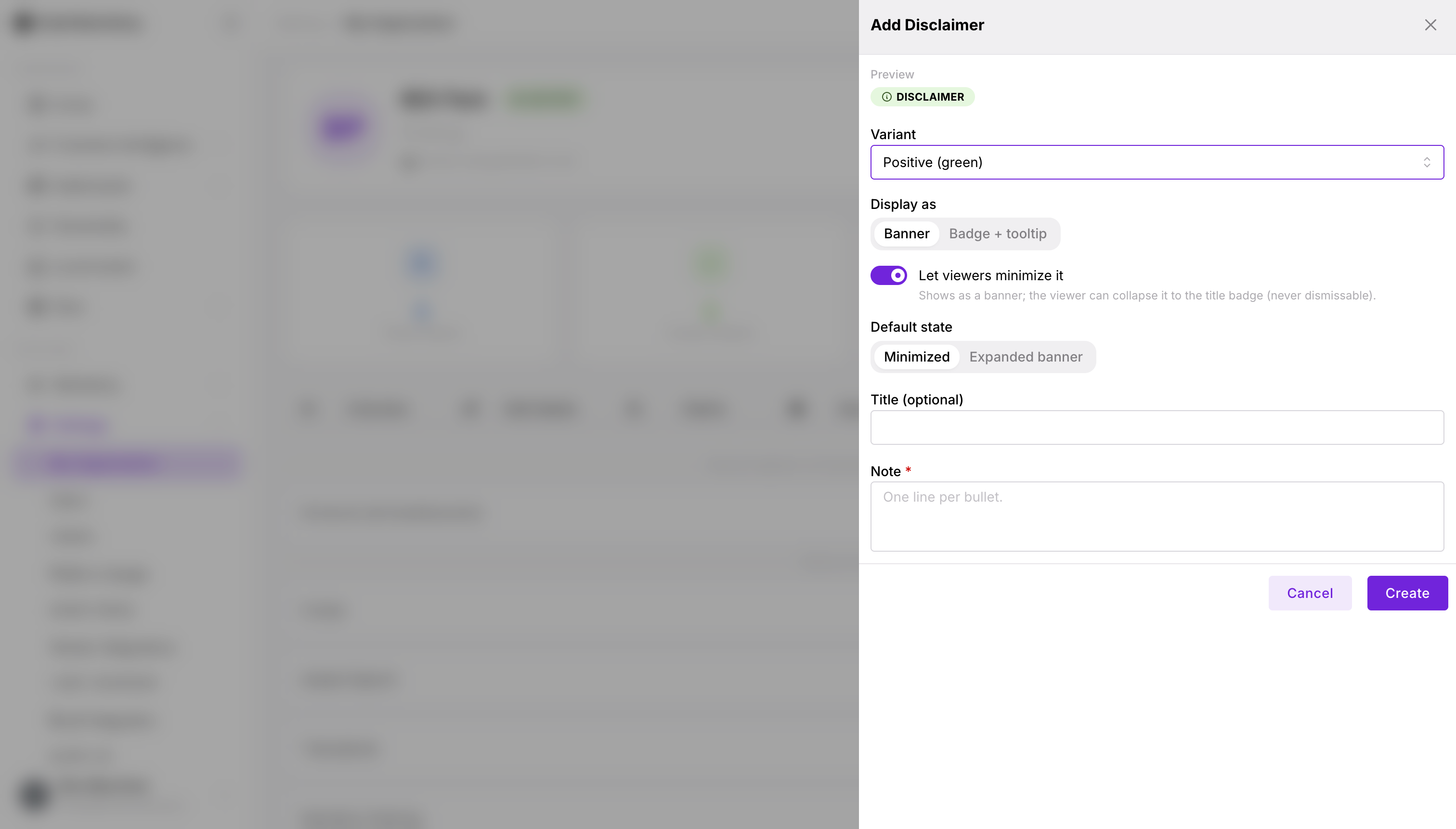
Fill in the form. A preview at the top shows exactly what viewers will see as you type.
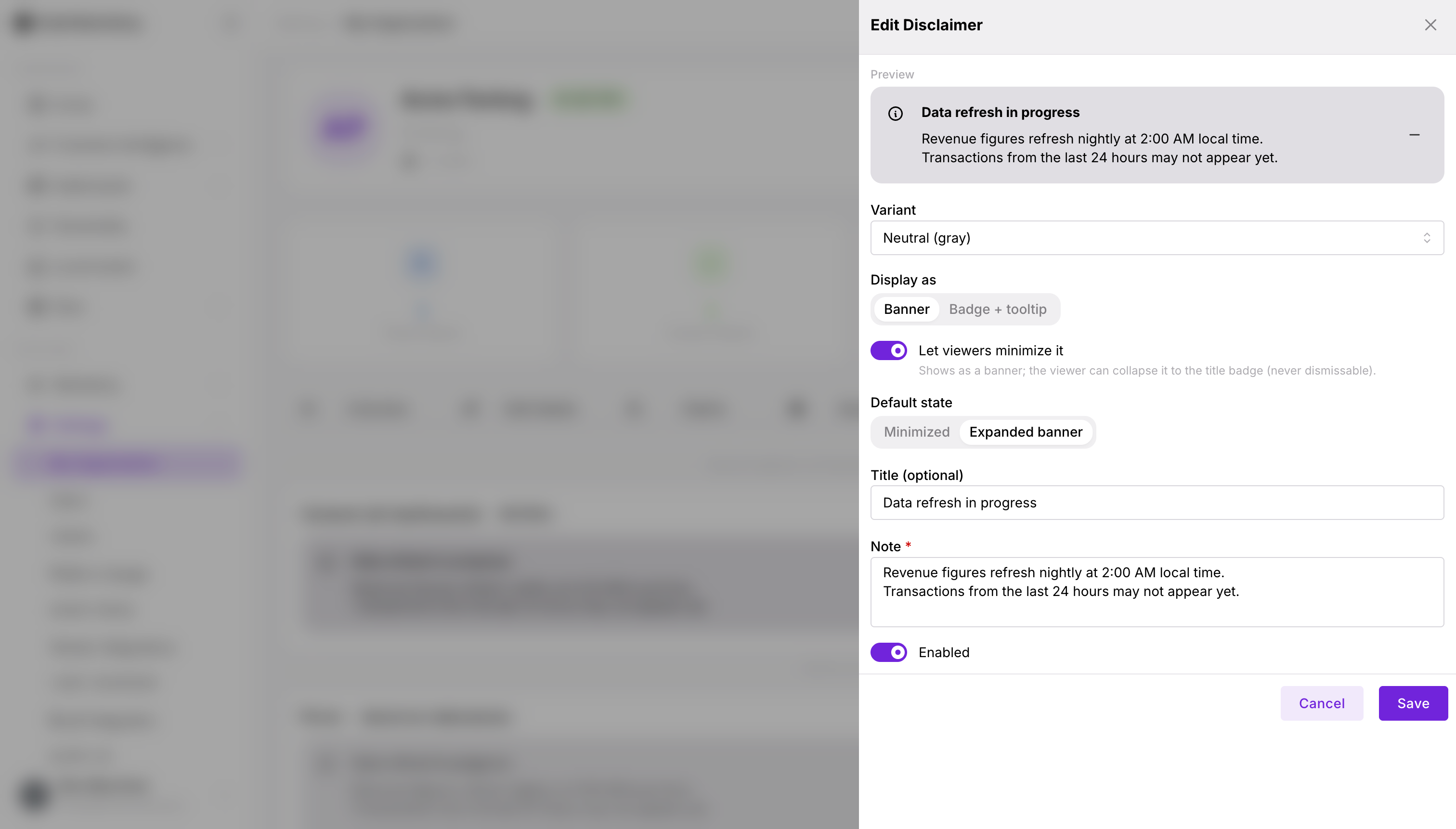 <table style="min-width: 25px;"><colgroup><col style="min-width: 25px;"></colgroup><tbody><tr><td colspan="1" rowspan="1"><p>Variant — Neutral (gray), or another color to signal severity</p></td></tr><tr><td colspan="1" rowspan="1"><p>Display as — Banner, or Badge + tooltip</p></td></tr><tr><td colspan="1" rowspan="1"><p>Let viewers minimize it — lets a Banner collapse down to the badge</p></td></tr><tr><td colspan="1" rowspan="1"><p>Default state — Minimized or Expanded banner, for first-time viewers</p></td></tr><tr><td colspan="1" rowspan="1"><p>Title (optional) and Note (required — this is the message itself)</p></td></tr></tbody></table>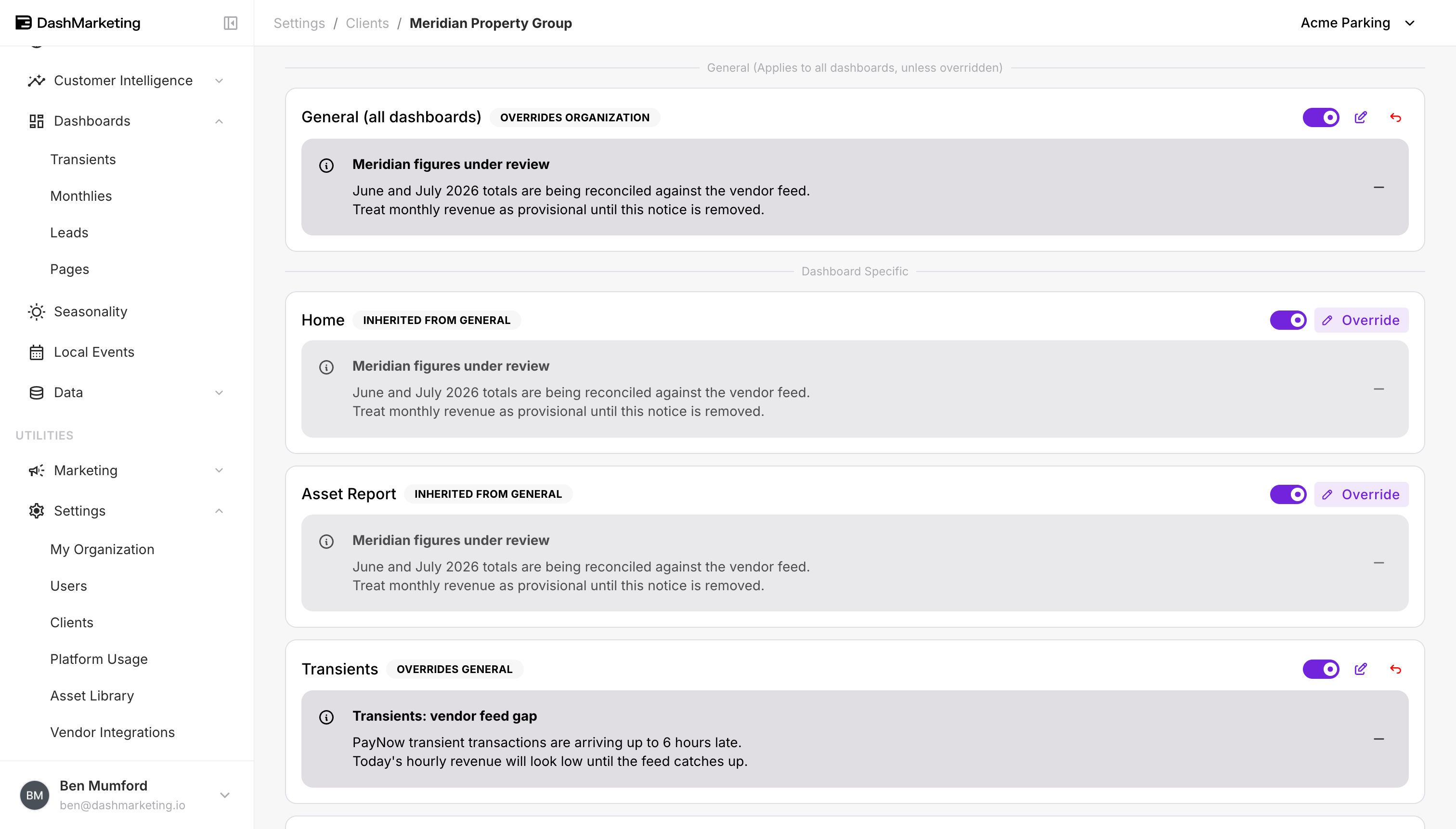
Click Create.
Your note is now live on every dashboard. Each row in the Dashboard Specific list below is marked INHERITED FROM GENERAL, meaning it is using this one.
One client
Use this when a single client needs different wording — their data is being reconciled, their feed is late, their reports are on hold.
Go to Settings → Clients → client → Disclaimers.
Find the row you want. It tells you where its note is coming from —
INHERITED FROM ORGANIZATIONmeans it is using your organization's note.Click Override. The same form opens, already filled in with the note it was using, so you can edit rather than start over.
Change the wording and click Create.
The row now says OVERRIDES ORGANIZATION, and the Override button is replaced by a pencil (edit) and a back-arrow (revert).
One location
Same steps, one level further down. Use it for something specific to a single site — meters being replaced, a barrier out of action, a count that is temporarily wrong.
- Go to Data → Locations → location → Disclaimers.
- Click Override on the row you want. Rows here are marked
INHERITED FROM CLIENTwhen they are using the client's note. - Change the wording and click Create.
The row now says OVERRIDES CLIENT.
One dashboard
This is not a fourth level — it works alongside the three above. On any of those three pages, scroll to Dashboard Specific and you can set a different note for just one dashboard.
You can target Home, Asset Report, Transients, Monthly Parking, Parkers and Pages.
- Find the dashboard in the list.
- Click Add or Override.
- Fill in the form and click Create.
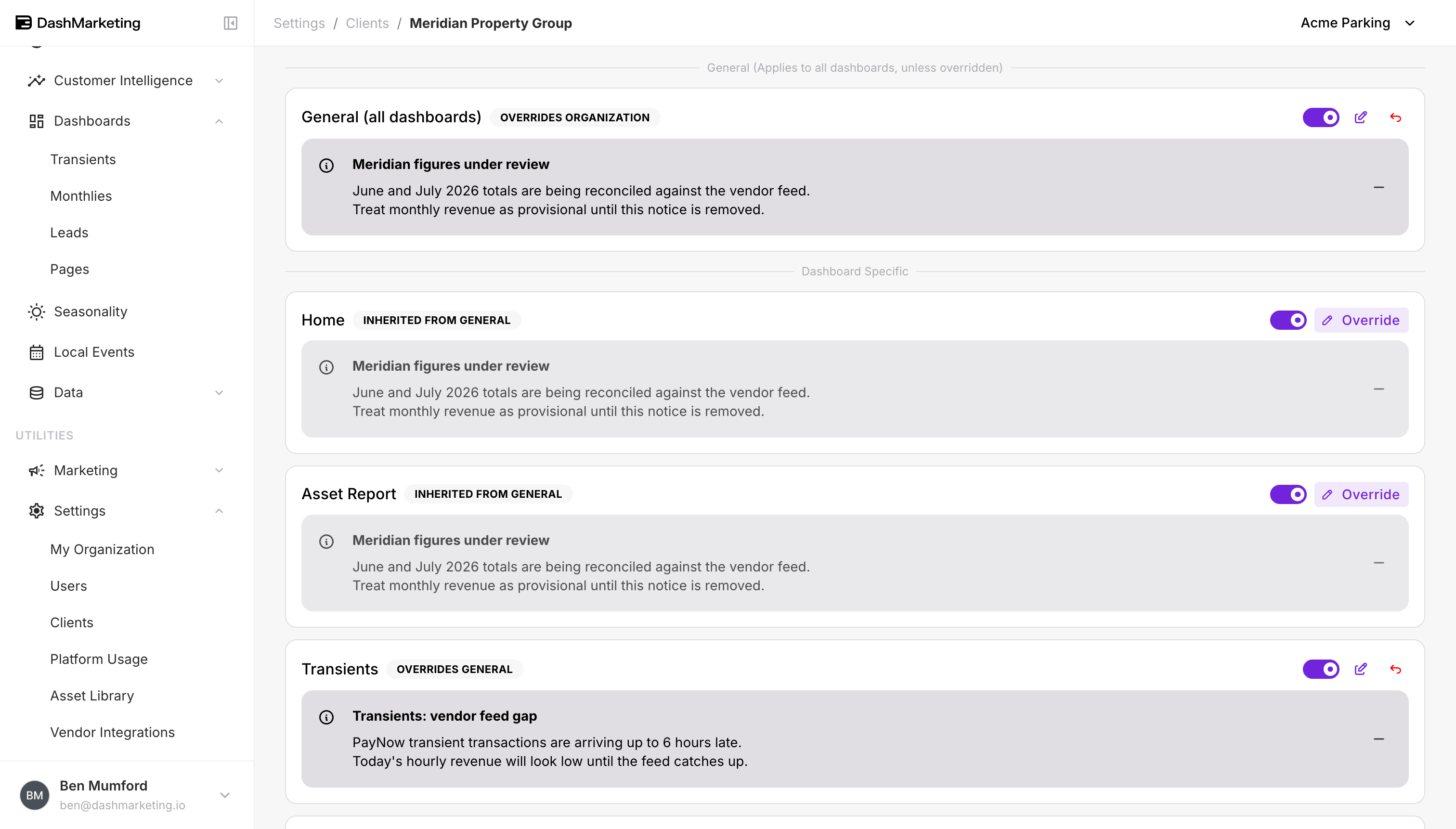 A note set for one dashboard only beats the all-dashboards note at the same level. A more specific level below it will still replace it — see the next section.
Which one a viewer sees
Disclaimers never stack. Only one shows at a time. Two things decide which.
The level follows the dashboard filters
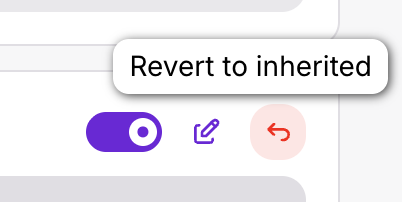 This is the part people find surprising, so it is worth reading twice.
The level has nothing to do with who is logged in. It depends on what the dashboard is filtered to right now.
| If the dashboard is... | The viewer sees... |
|---|---|
| Not filtered to a client or location | Your organization's note |
| Filtered to one client | That client's note |
| Filtered to one location | That location's note |
So the same person on the same page will see a different note as they narrow the filters. That makes a location disclaimer perfect for something like "the meters at this one garage are being replaced" — it shows up when someone looks at that garage, and stays out of the way the rest of the time.
The level is decided before the dashboard
Once the level is settled, the platform then looks for a note set for that specific dashboard, and falls back to the all-dashboards note if there isn't one.
Because the level is settled first, a location's all-dashboards note will replace a client's Transients-only note, even on the Transients page.
An example. Say you have set up three disclaimers:
- Organization, all dashboards → "Data refresh in progress"
- Meridian Property Group, Transients only → "Transients: vendor feed gap"
- Keystone Lot, all dashboards → "Keystone Lot meters recalibrated"
Open the Transients dashboard and change the filters:
| Filter | What shows |
|---|---|
| No filter | Data refresh in progress |
| Client is Meridian | Transients: vendor feed gap |
| Location is Keystone Lot | Keystone Lot meters recalibrated |
Keystone Lot's note wins in the last row, even though Meridian's was written specifically for the Transients page. The level is decided before the dashboard.
Turning a disclaimer off
There are two ways, and they do different things.
Revert — go back to the note above
Click the back-arrow on any row you have overridden. You will be asked to confirm:
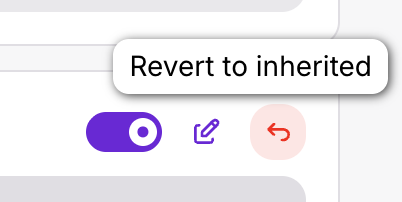 Your wording is deleted and the row goes back to using the note from the level above. Use this when the override is no longer needed.
Toggle off — show nothing at all
Every row has a Show disclaimer on dashboards switch. Turn it off and the row is marked HIDDEN. Your wording is kept, so you can switch it back on whenever you like. The same control appears as Enabled at the bottom of the edit form.
Turning it off does not go back to the note above it. It hides disclaimers for that client or location completely — anyone filtered to it sees nothing.
In short: revert if you want the note from above. Toggle off if you want no note at all.
Checking it looks right
On a client's page, choose Actions → View as Client to see the platform the way that client sees it.
For a location, it is quicker to open the dashboard and set the Location filter — the disclaimer changes as soon as the filter is applied.
Things worth remembering
- Only one disclaimer shows at a time. They never stack.
- The level is decided by the dashboard's filters, not by who is logged in.
- The level is decided before the dashboard.
- Viewers can collapse a disclaimer, but never remove it.
- Revert gives you the note from above. Toggling off gives you no note.
Was this page helpful?