
Adding a Location
Last updated September 9, 2026
locationBefore you start
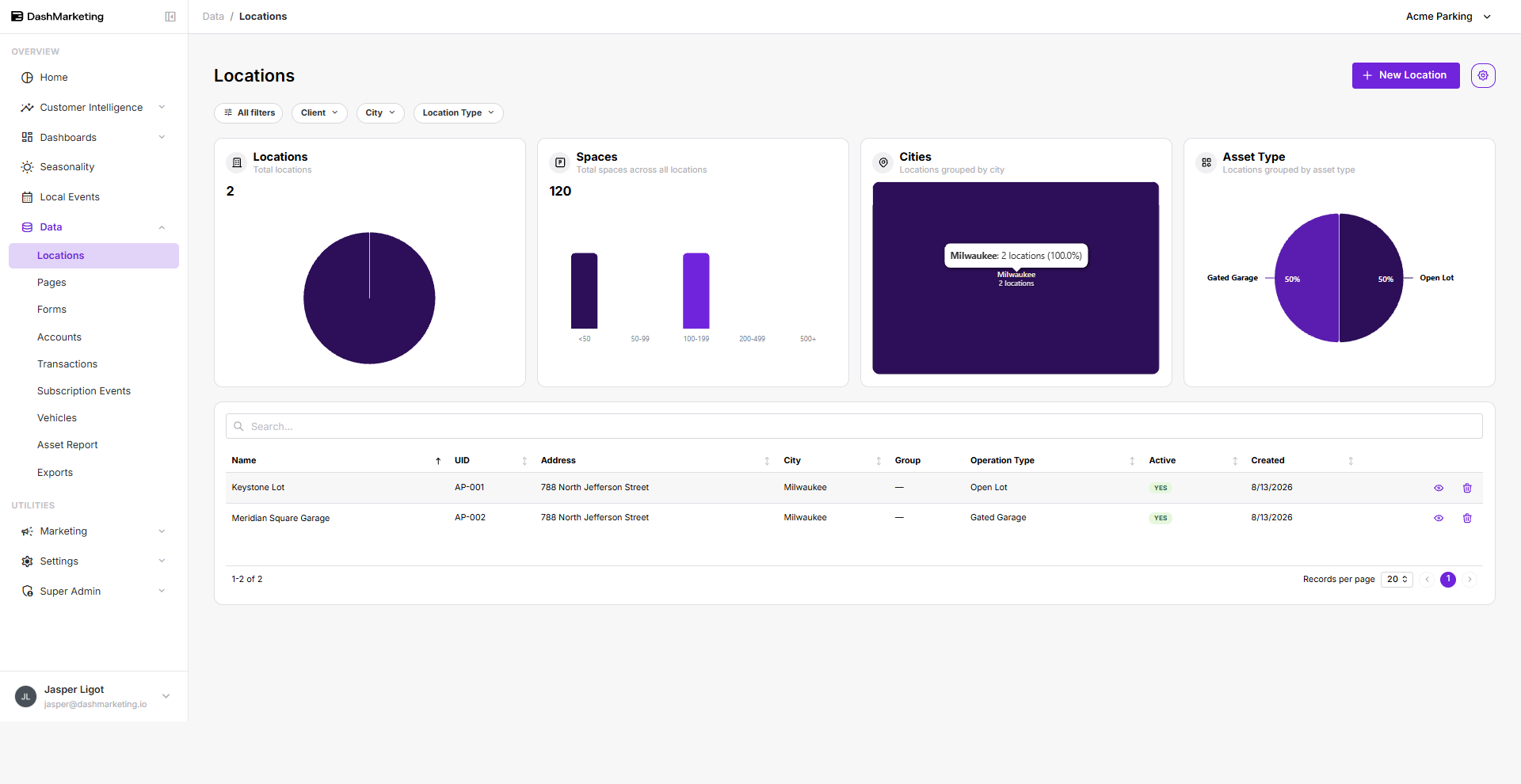
Go to Data → Locations.
The list page shows your existing locations, along with quick summary charts for Locations, Spaces, Cities, and Asset Type. Use these to get your bearings before adding another one.
Starting a New Location
Click New Location in the top-right corner.
The Add New Location panel opens. It has two sections to fill in before you can submit: Basic Information, then Address Information.
Required fields are marked with a red asterisk (*) in the form and listed as Required in the tables below. At a minimum you will need:
Name, UID, Location Type, Street Address, City, State, ZIP Code, Latitude, Longitude, and Timezone.
Basic Information
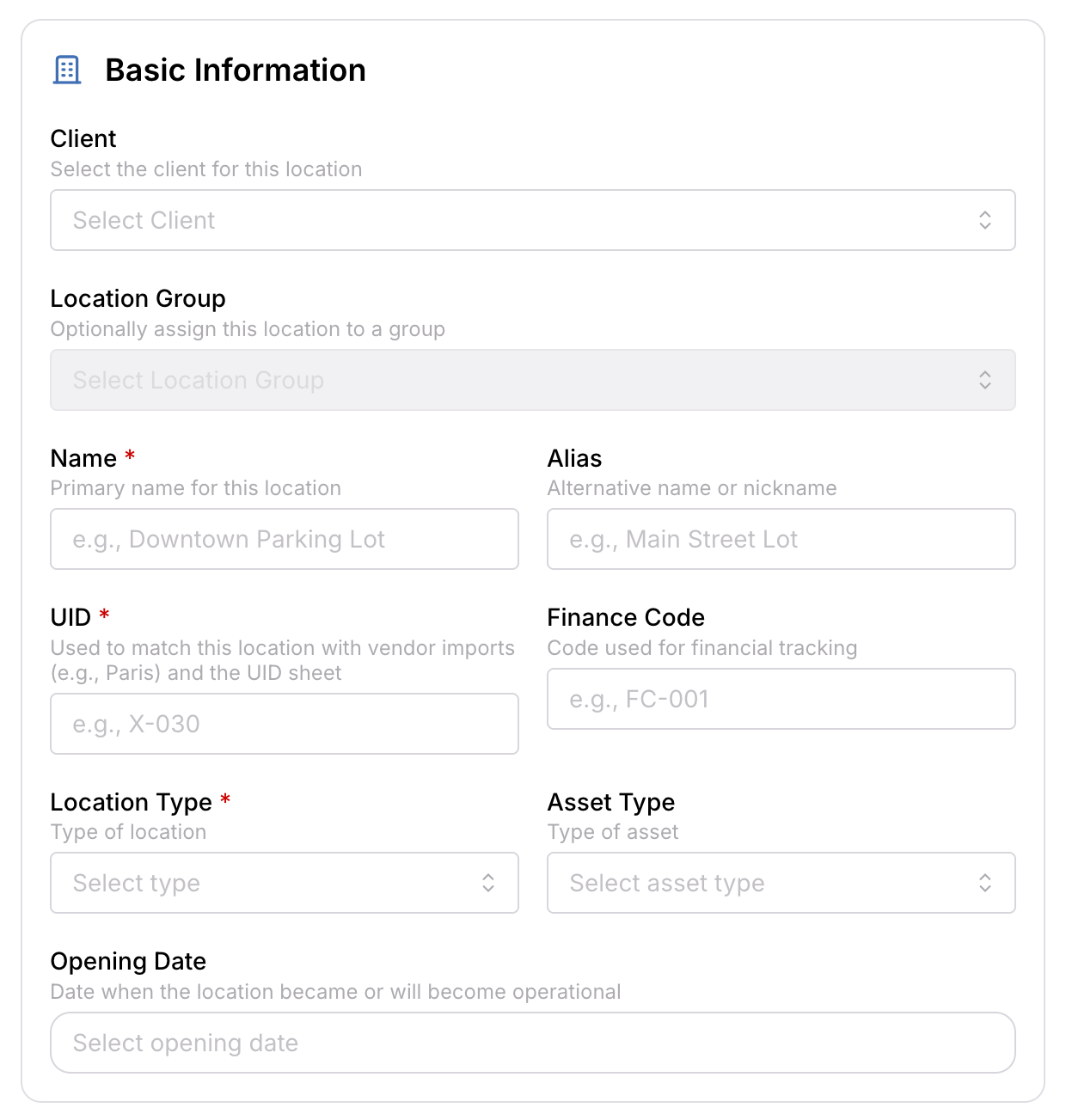
| Field | Required | What it does | Example |
|---|---|---|---|
| Client | — | The client this location belongs to. | Meridian Property Group |
| Location Group | — | Optionally assigns the location to a group. | Downtown Portfolio |
| Name | Required | The location's primary display name. | Downtown Parking Lot |
| Alias | — | An alternative name or nickname for the location. | Main Street Lot |
| UID | Required | Unique identifier used to match this location with vendor imports (e.g. PayNow) and the UID sheet. | X-030 |
| Finance Code | — | Code used for finance and accounting tracking. | FC-001 |
| Location Type | Required | The type of location this record represents. | Selected from the list configured for your organization |
| Asset Type | — | The kind of asset the location is. | Open Lot, Gated Garage |
| Opening Date | — | The date the location became, or will become, operational. | 01/15/2026 |
Address Information
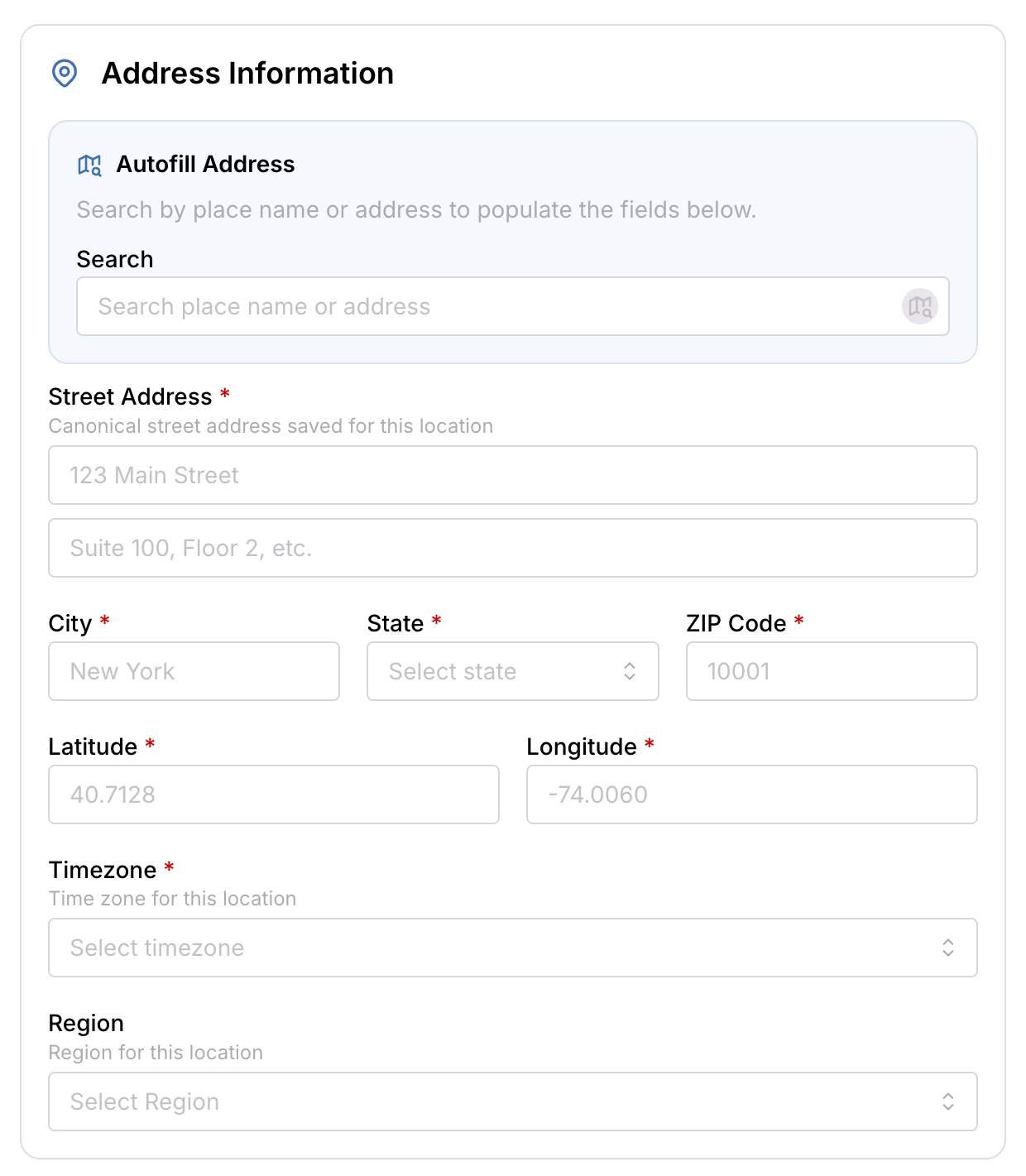
| Field | Required | What it does | Example |
|---|---|---|---|
| Street Address | Required | The canonical street address saved for this location. | 123 Main Street |
| Address Line 2 | — | Suite, floor or unit detail. | Suite 100, Floor 2 |
| City | Required | City the location sits in. | New York |
| State | Required | State, selected from the list. | NY |
| ZIP Code | Required | Postal code for the address. | 10001 |
| Latitude | Required | Latitude coordinate, used for mapping and distance calculations. | 40.7128 |
| Longitude | Required | Longitude coordinate, used for mapping and distance calculations. | -74.0060 |
| Timezone | Required | Time zone for this location. Drives how dates and times are reported. | America/New_York |
| Region | — | Region the location is assigned to. | Midwest |
Scroll down to Address Information. You have two ways to fill this in:
- Autofill Address — search by place name or address and the fields below populate for you, including Latitude and Longitude. You can still edit anything afterwards. This is the quickest route, and it saves you looking up coordinates by hand.
- Manual entry — complete each field yourself.
Submitting
Once every required field is filled in, click Submit to create the location. Click Cancel instead if you want to discard it.
After submission
The new location appears in the Locations list, and its detail page becomes available with the same tabs as any other location:
Overview, Edit Details, Attributes, Products, Vendors, Images, Disclaimers, Access
All of these tabs start out empty — you fill them in separately after the location itself is created.
Was this page helpful?