
Managing Images
Last updated August 27, 2026
locationThis guide covers the Images tab, where general image files (in addition to the header banner) can be uploaded and stored against a location.
How it works
Click Upload New File to add an image. Each uploaded file appears as its own card with a thumbnail, file name, and View / Delete actions. A card can be tagged HEADER if it is currently used as the location's banner image (set via Actions → Edit Header Image).
Images on Keystone Lot (worked example)
One file is stored: "Keystone Lot 2.jpg," tagged HEADER since it's the active banner image shown at the top of the Overview tab.
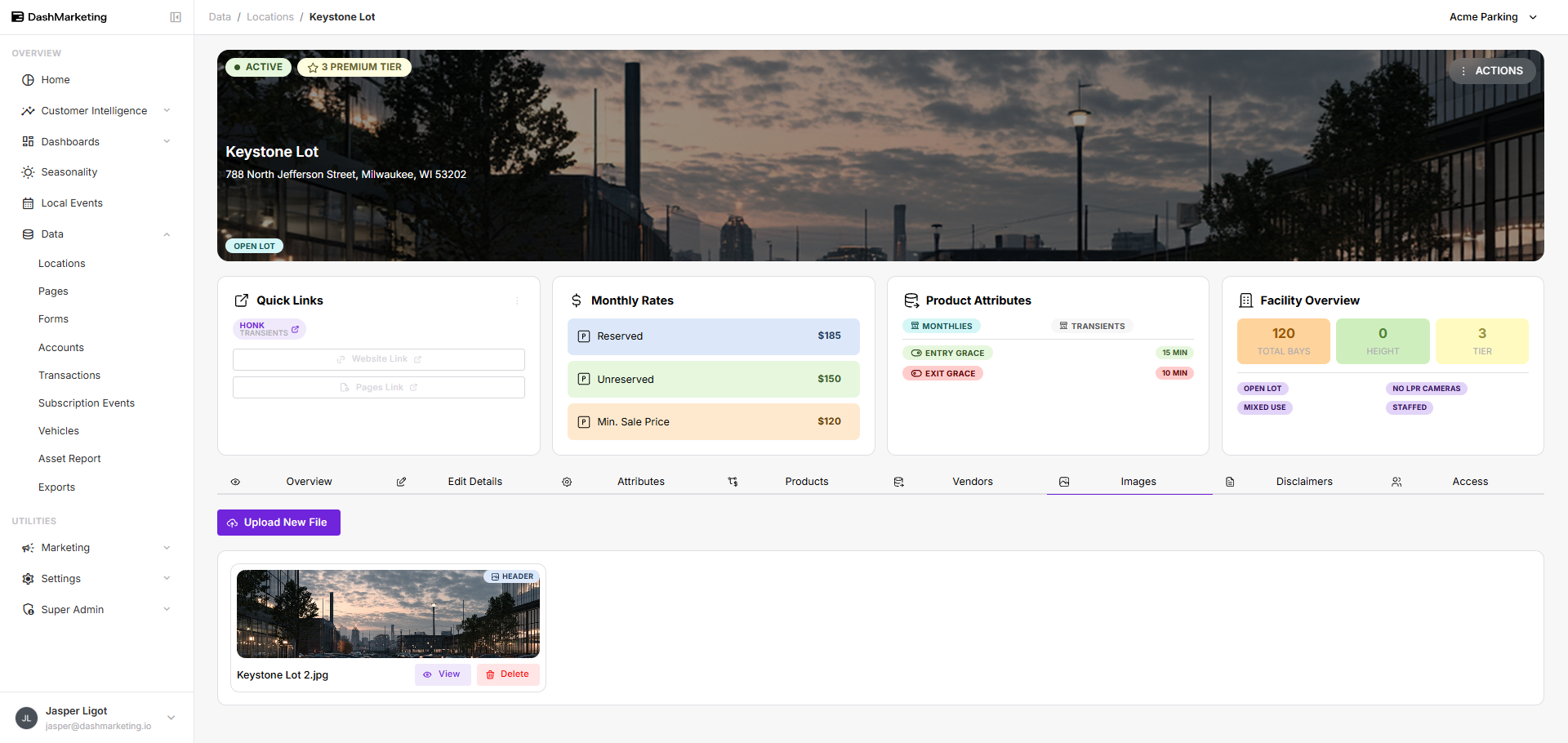 Above: the Images tab for Keystone Lot showing the one stored file, marked HEADER.
Was this page helpful?