
Managing Vendors
Last updated August 27, 2026
locationThis guide covers the Vendors tab, where third-party integration partners (e.g. mobile payment/booking apps) are connected to a location via zones.
How it works
Click Add zone to connect a vendor to this location. Each vendor card lists its configured zones (the vendor's identifier for a coverage area/lot); zones can be expanded to view or manage further detail.
Vendors configured on Keystone Lot (worked example)
Honk (1 zone)
Zone "TEST123" is configured, shown as active (green status dot).
Honk is also the vendor referenced in the Transients product attribute ("Bookable via Honk app") — the Vendors tab and the Products tab attribute work together to describe the same integration.
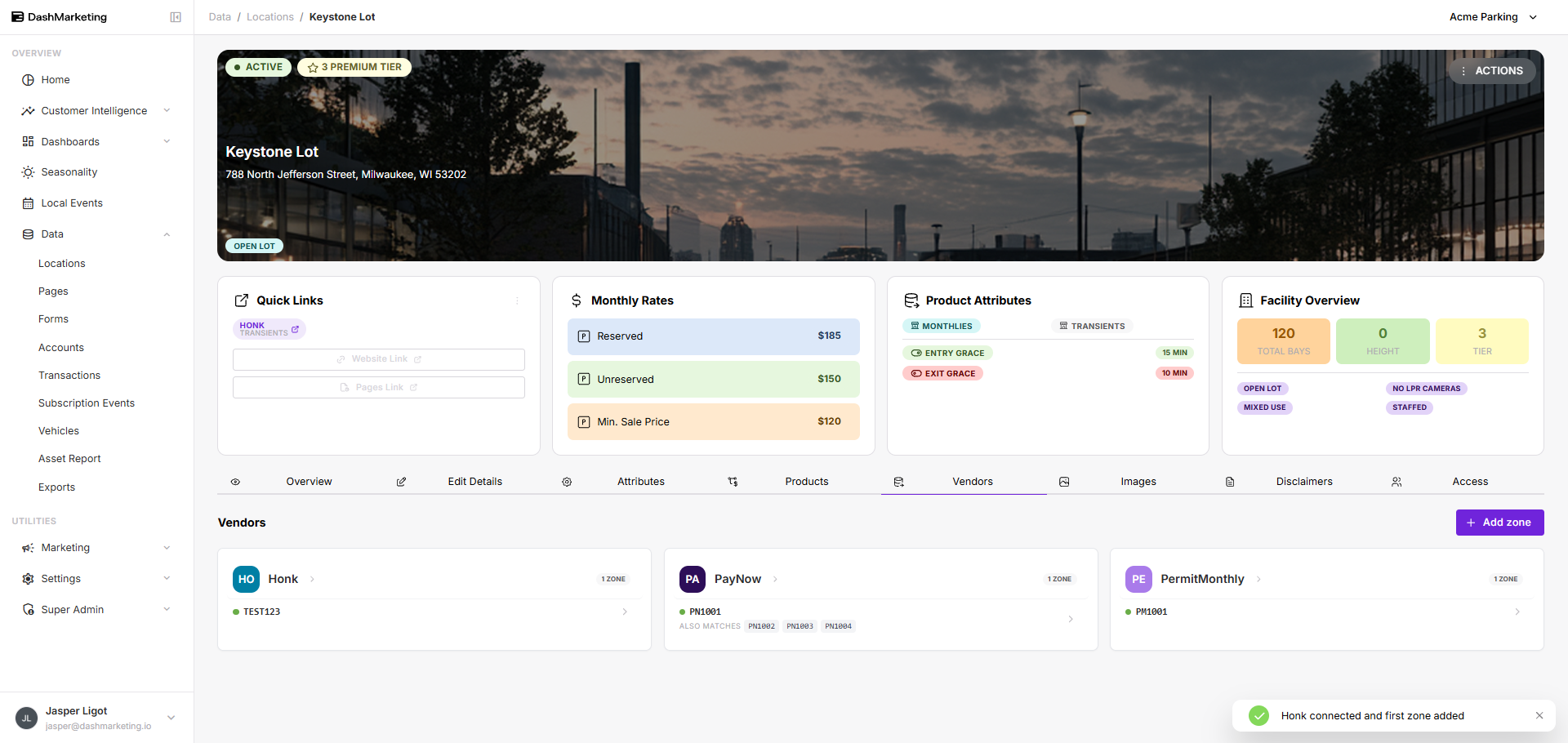 Above: the Vendors tab for Keystone Lot showing the honk vendor card with its configured zone.
Was this page helpful?