
Parker Usage
Last updated November 18, 2026
Parker Usage
The Parker Usage report shows how often parkers entered your locations and how long they stayed during a selected month, using camera-recorded parking sessions.
Use it to review individual usage, compare activity across the month, identify plates that have not been matched to a contact, and export the results to Excel.
Before You Start
Parker Usage must be enabled for your organization, and your account must have permission to view it. Exporting requires report export permission.
The report depends on camera session data available in Dash. A transaction or subscription alone does not create an entry in this report.
Open and Filter the Report
In the left navigation menu, go to Reports → Parker Usage.
Select the month you want to review. The report opens on the previous calendar month.
Use Client and Location to narrow the results. You can select multiple locations.
Leaving the location filter empty includes all locations available within your access and any selected client.
Dates are counted using each location’s local time.
 ## Understand the Report
| Element | What it shows |
|---|---|
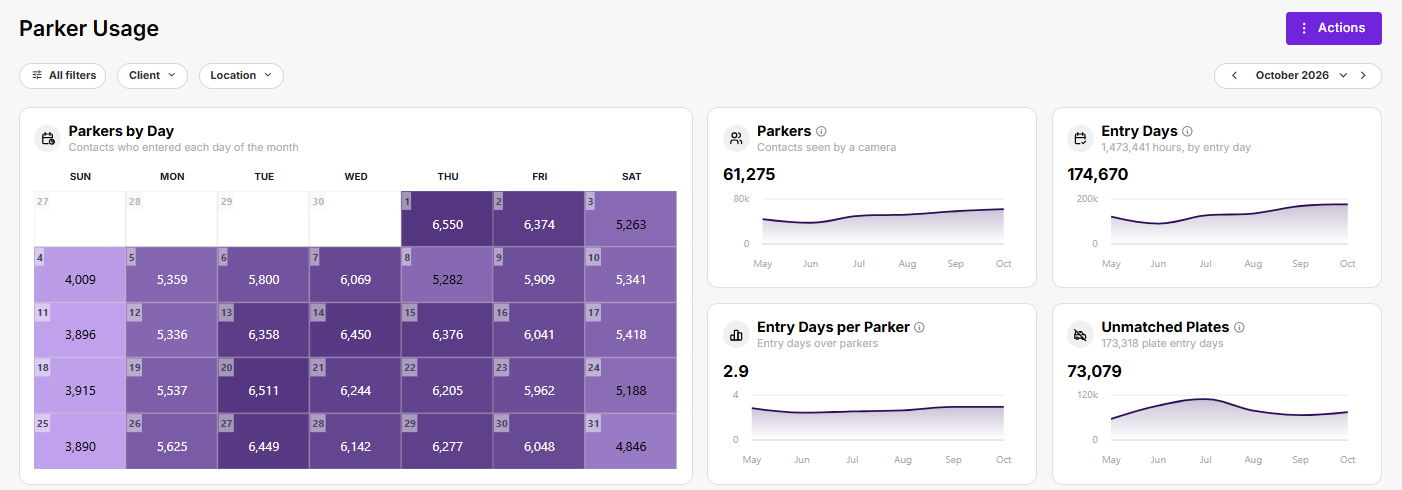
| Parkers by Day | A calendar showing how many distinct parkers entered on each date. Hover over a day to see its parker count, hours parked, and unmatched plate count. |
| Parkers | Distinct contacts with at least one camera-recorded stay starting in the selected month. Each contact counts once across the selected locations. |
| Entry Days | The total number of distinct entry dates across those parkers. Each parker can contribute one entry day per local date. |
| Entry Days per Parker | Entry Days divided by Parkers, displayed to one decimal place. |
| Unmatched Plates | Distinct plates seen by a camera that have not been linked to a contact. These are counted separately from parkers. |
The trend lines on the summary cards show the six months ending with the selected month.
How Entry Days and Hours Are Calculated
Entry Days
An entry day is a local date on which a parker’s stay began.
A parker counts once on that date, even if they enter several times or visit multiple selected locations. An overnight stay counts on its entry date; remaining parked after midnight does not create another entry day.
For example:
| Activity | Entry days |
|---|---|
| One parker enters three times on Monday. | 1 |
| One parker enters Location A and Location B on the same local date. | 1 across the combined report |
| One parker enters on Monday and again on Tuesday. | 2 |
The Entry Days total adds these counts across all parkers. For example, 10 parkers with 3 entry days each contribute 30 entry days, averaging 3 entry days per parker.
Hours Parked
Hours parked adds the duration of stays that began in the selected month, measured from entry to exit.
The full duration belongs to the entry date and month, including time after midnight or after the end of the month.
For example, a stay from January 31 at 11 PM to February 2 at 11 PM contributes:
1 entry day on January 31.
48 hours parked in January.
No entry days or hours in February from that same stay.
A stay without a recorded exit can contribute an entry day, but it does not contribute hours until a valid duration is available.
This report groups activity by when stays began. It does not show how many vehicles were present at every point during the month.
Review Individual Parkers
The Parkers table lists contacts with camera-recorded activity for the selected month and filters. It initially sorts by entry days, highest first.
| Column | What it shows |
|---|---|
| Name | The contact’s name, when available. |
| UID | The external reference associated with the contact, such as an employee ID supplied through a roster import. |
| The contact’s email address, when available. | |
| Entry days | The number of distinct dates on which the parker entered. |
| Hours parked | The total duration of stays that began in the month. |
| Entry dates | A small calendar marking the dates on which the parker entered. Hover over a date for details. |
| Plates | License plates linked to the contact. |
Search by name, email, UID, or plate, using at least three characters. Select a sortable column heading to change the order.
If your permissions allow it, select a parker’s row to open their contact record. Personal details may be masked depending on your access.
Review Unmatched Plates
Select Unmatched plates above the table to see camera-recorded activity that has not been linked to a contact.
This view shows each plate’s entry days, hours parked, and entry dates. Use Search plate to find a particular vehicle.
Repeated activity on an unmatched plate can be a useful reason to check the plate information in your contact or roster records.
Switching between Parkers and Unmatched plates, or searching the table, changes the table results. It does not filter the summary cards or calendar.
Export to Excel
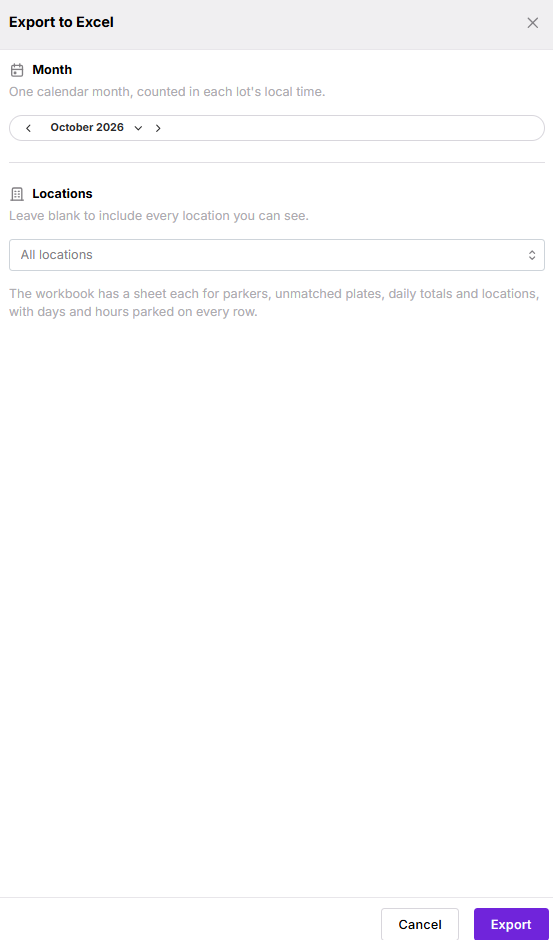
Select Actions → Export to Excel.
Review the Month and Locations in the export panel. They initially match the report’s filters.
Adjust the month or locations if needed. The selected client carries over from the report.
Select Export.
Dash prepares the workbook and starts the download when it is ready. If preparation continues in the background, check Reports → Exports for the file.
The export includes both parkers and unmatched plates for the selected month, client, and locations. It is not restricted to the table’s current search or selected view.
 ### Workbook Contents
| Worksheet | Contents |
|---|---|
| Report Info | Reporting period, filters, summary totals, and calculation notes. |
| Parkers | Individual parker details, entry days, hours parked, weekday and weekend entry-day counts, and entry dates. |
| Unmatched Plates | Usage details for plates that have not been linked to a contact. |
| Daily Totals | Daily parker counts, hours parked, and unmatched plate counts. |
| By Location | Parker and unmatched plate usage totals for each location. |
The Parkers and Unmatched Plates worksheets also include a column for each date, with 1 marking an entry day.
Export Limits and Total Differences
Exports support up to 250,000 combined parker and unmatched plate rows. Select fewer locations if the export exceeds this limit.
A parker who uses multiple locations is counted at each location in By Location, but only once in the report’s overall parker total. Location counts can therefore add up to more than the overall count.
Hours are rounded to one decimal place on each exported row. Adding the displayed row values can produce a slightly different result from the report total.
Was this page helpful?