
Client users and Roles
Last updated September 8, 2026
A client user is a person who signs in under one of your clients. They get the client view described in What clients see and nothing wider.
Client users are created the same way as your own staff — Settings → Users — with one checkbox that changes everything.
Inviting a client user
Go to Settings → Users.
Click + New User.
Enter their Email (required) and Name.
Tick Client-Only User.
Choose the Client they belong to.
Choose an Initial Role.
Submit.
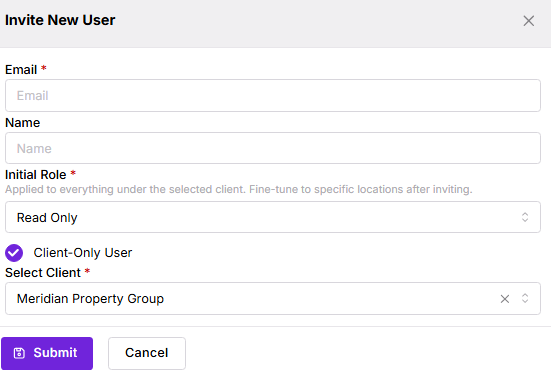
📸 Screenshot needed — invite-user-client-only.png The Invite New User panel with Client-Only User ticked, so the Select Client dropdown is visible. Call out: the checkbox, the Select Client field, and the helper text under Initial Role — it changes from "Applied organization-wide" to "Applied to everything under the selected client."
The Client-Only User checkbox is the whole decision. Leave it off and you've created a member of your own staff with organization-wide access. Tick it and the user is permanently bound to one client.
Client-only users cannot be Admins. With the checkbox ticked, the role list is Editor, Read Only, and Analyst. Admin — which carries user and billing management — is not offered. That's deliberate: no external user should be able to manage logins for your organization.
The invited user appears in the list with Invite Accepted: NO until they complete sign-up.
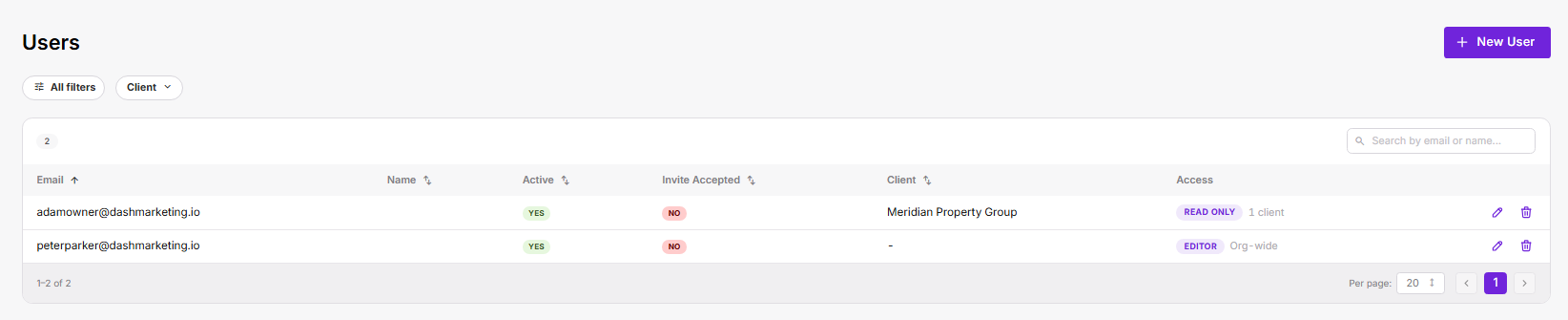 📸 Screenshot needed — settings-users-list.png Settings → Users showing both a client user and an org user in the same table. Call out: the Client column (client name vs -) and the Access column (READ ONLY · 1 client vs EDITOR · Org-wide) — the two-second way to tell them apart.
The three roles
Roles say what a user can do. Scope says where. They're separate, and both apply.
<table style="min-width: 50px;"> <colgroup><col style="min-width: 25px;"><col style="min-width: 25px;"></colgroup><tbody><tr><th colspan="1" rowspan="1"><p><strong>Role</strong></p></th><th colspan="1" rowspan="1"><p><strong>What it allows</strong></p></th></tr><tr><td colspan="1" rowspan="1"><p><strong>Editor</strong></p></td><td colspan="1" rowspan="1"><p>Create and edit operational data. No user, billing, or credential management.</p></td></tr><tr><td colspan="1" rowspan="1"><p><strong>Read Only</strong></p></td><td colspan="1" rowspan="1"><p>View and export everything in scope. No changes.</p></td></tr><tr><td colspan="1" rowspan="1"><p><strong>Analyst</strong></p></td><td colspan="1" rowspan="1"><p>Dashboards and reports only. No PII, no row-level operational data.</p></td></tr><tr><td colspan="1" rowspan="1"><p><strong>Admin</strong></p></td><td colspan="1" rowspan="1"><p>Full management access including users and billing. <strong>Org users only</strong> — never offered to client-only users.</p><img src="https://ogboq319doetsqdd.public.blob.vercel-storage.com/uploads/image-SA5YdxhN3QLiZgbapPhr6FvdvUAbZM.png" alt="image"></td></tr></tbody> </table>
📸 Screenshot needed — roles-tooltip.png The About roles tooltip open (the ⓘ next to Access Grants on the Edit User Access panel), showing all four role descriptions.
Choosing a role for a client
Read Only is the right default for most clients. They see their dashboards, they can pull exports, they can't change anything.
Analyst is the choice when the client should see performance but not people. It strips PII and row-level records. In practice that means a client on Analyst sees the Monthlies revenue trend but not the Highest Value Accounts list with parker names against it.
⚠️ Verify before publishing: confirm exactly which cards and columns Analyst suppresses on Monthlies, Parkers, and Leads. The role description is clear about intent; the per-screen behaviour should be checked and listed here so support isn't guessing.
Editor is rare for a client, and worth a pause. It lets them create and edit operational data inside their scope. Give it only when a client genuinely co-manages the asset with you and you've agreed they can change records.
Narrowing access after the invite
The invite applies the role to everything under the client. To go finer, open the user (pencil icon on the Users list) and edit their Access Grants.
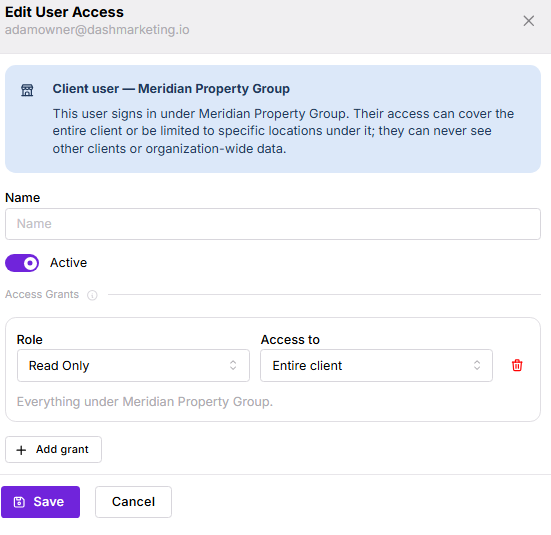 📸 Screenshot needed — edit-user-access-client.png The Edit User Access panel for a client user. Call out: the blue banner reading "Client user — [name]. This user signs in under [name]. Their access can cover the entire client or be limited to specific locations under it; they can never see other clients or organization-wide data.", the Role + Access to pair, and the + Add grant button.
Each grant is a Role paired with an Access to scope. Scopes include the entire client, specific locations you pick, or every location in a city (which picks up new locations in that city automatically).
A user can hold several grants at once, and different roles can apply to different scopes. Their effective access is the combination of all of them.
A worked example. A regional manager for a client with six garages needs to see all six but should only pull parker-level detail for the two she runs day to day. Give her two grants: Analyst → entire client, and Read Only → those two locations.
The blue banner is the guarantee worth repeating to a nervous client: whatever grants you stack, a client user can never reach another client or organization-wide data. The ceiling is the client, always.
Removing access
Temporarily: switch the user's Active toggle off on the Edit User Access panel. The account and its grants stay intact.
Permanently: delete the user from the Users list (bin icon).
Reducing scope: delete individual grants with the red bin icon beside each one.
When a client contact leaves, deactivate rather than delete — it keeps the audit trail readable.
Next
What clients see — what the client view actually contains
Previewing with View as Client — check it before you send the invite
Was this page helpful?