
What clients see
Last updated September 8, 2026
When a client user signs in, they land on the same DashCore app you use — same layout, same charts, same brand. What changes is the scope of the data and the size of the navigation.
This page is the map. For screen-by-screen detail, see the Client view page reference.
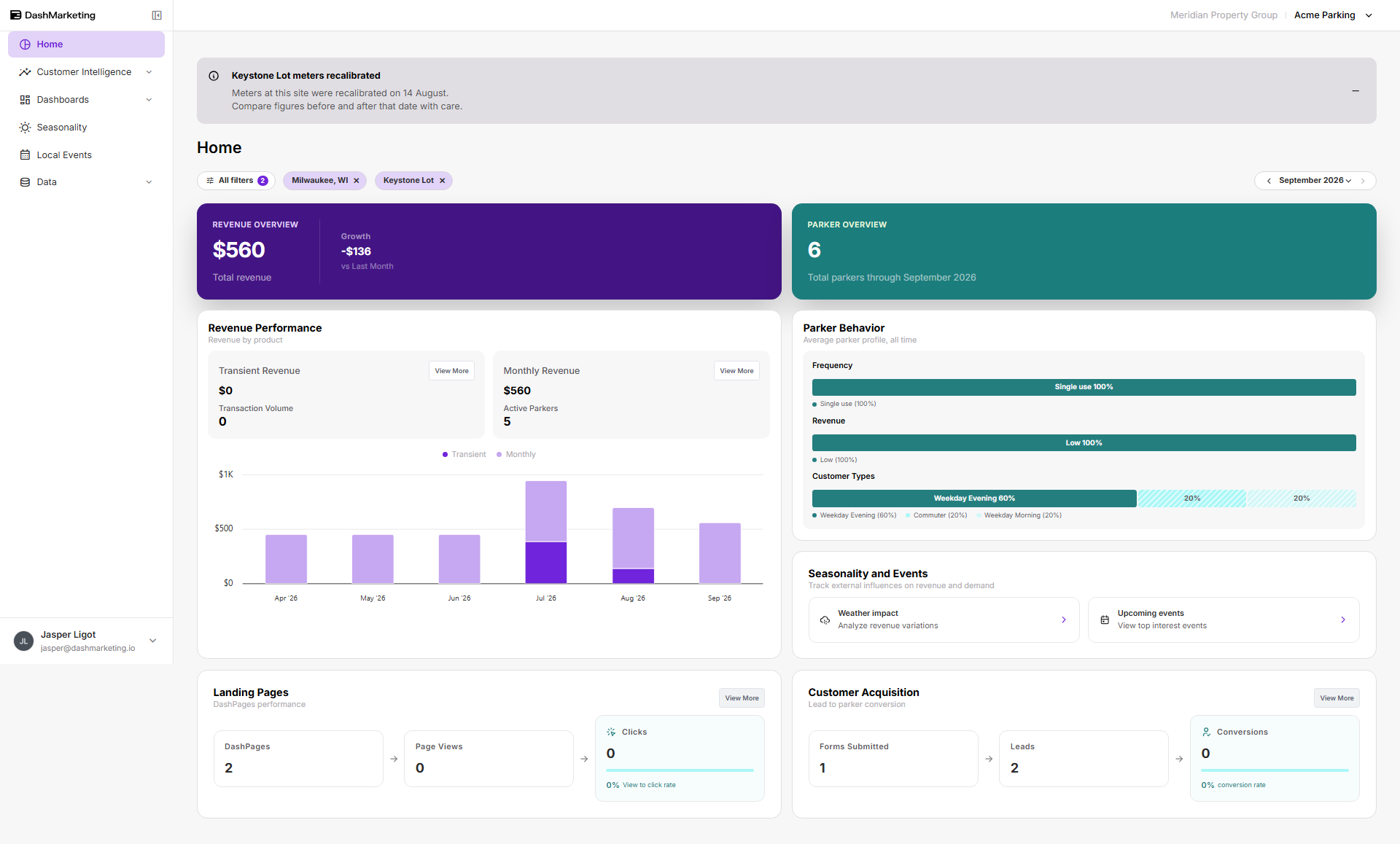 📸 Screenshot needed — client-view-home.png Client view, Home, signed in as (or viewing as) a client with real data. Capture the full window. Call out: the client name shown beside the org name in the top bar, the sidebar with no Utilities group, and the filter row — City and Location only.
The navigation, side by side
| Section | Org view | Client view |
|---|---|---|
| Home | ✅ | ✅ |
| Customer Intelligence | Parkers, Parker List, Audience Builder | Parkers, Audience Builder |
| Dashboards | Transients, Monthlies, Leads, Pages | Transients, Monthlies, Leads, Pages |
| Seasonality | ✅ | ✅ |
| Local Events | ✅ | ✅ |
| Data | Locations, Pages, Forms, Accounts, Transactions, Subscription Events, Vehicles, Asset Report, Exports | Locations, Pages, Asset Report, Exports |
| Marketing | Page Templates, Triggers | — |
| Settings | My Organization, Users, Clients, Platform Usage, Asset Library, Vendor Integrations, Lead Conversion, Email Integration, Audit Log | — |
| Super Admin | ✅ | — |
The whole Utilities group — Marketing, Settings, Super Admin — is gone. So is Parker List and the raw operational tables under Data.
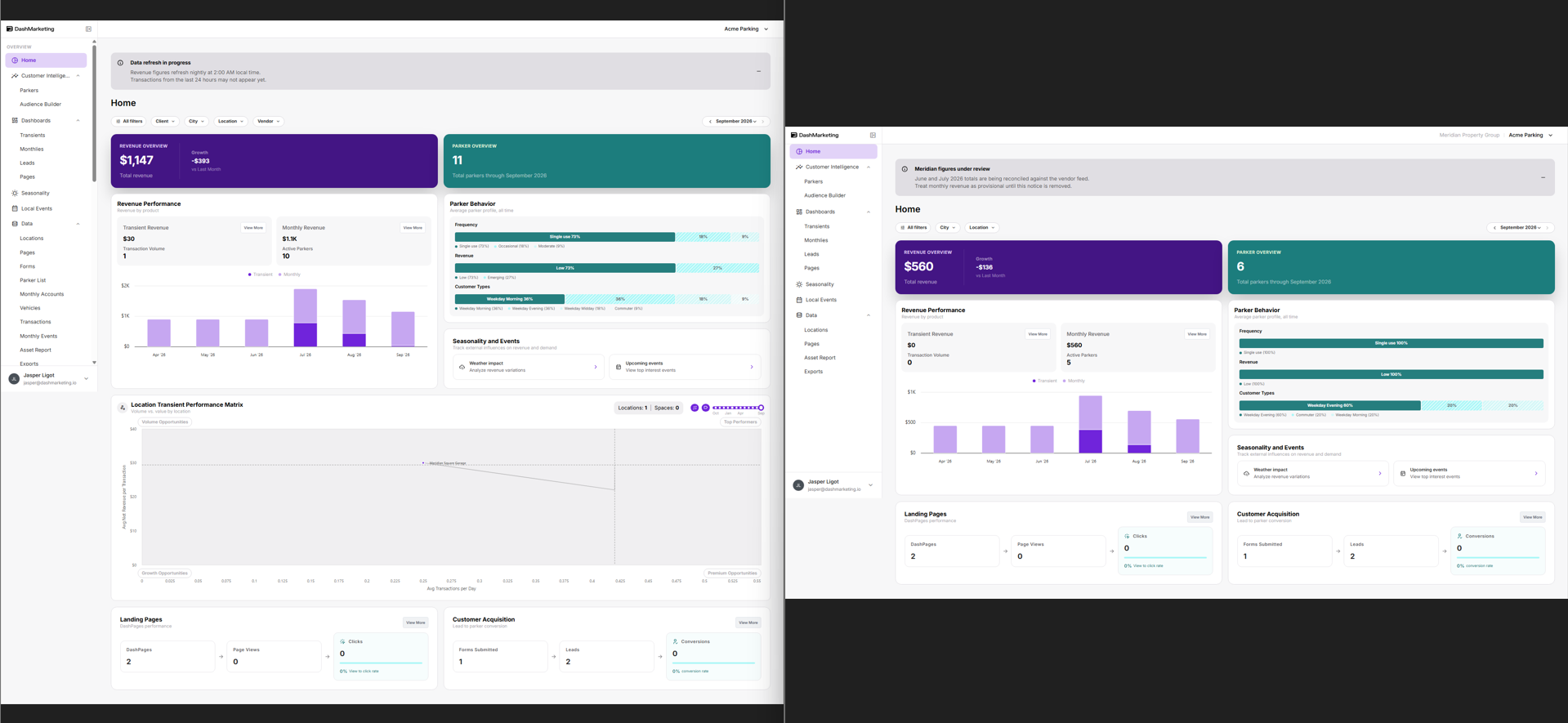 📸 Screenshot needed — sidebar-comparison.png Two sidebars side by side, org view on the left and client view on the right, both fully expanded. This is the single most useful image in the section — it answers "what do they see?" faster than any paragraph. Worth compositing two captures into one image.
The filters they get
Filters are how scope shows up in the interface. On Home, an org user has Client, City, Location, Vendor. A client user has City and Location.
The Client filter isn't disabled — it isn't rendered. There is no control to widen the view because there is nothing wider to widen to.
Vendor still appears on some screens (Parkers, Transients, Monthlies) where the vendor breakdown is relevant to their own locations.
The data they get
Every figure is the sum of the locations attached to their client. The same portfolio viewed by an org admin and by a client shows different totals from the same screen — that's the scoping working, not a data error.
If a client's numbers look wrong, check the Locations tab on their client record before you check anything else. A location that hasn't been attached is invisible to them.
Disclaimers
Notices you set on a client's record appear as a banner above the dashboard content, so the caveat travels with the number instead of sitting in an email they've already deleted.
Disclaimers can be set once for all of a client's dashboards, or overridden per dashboard — so Transients can carry "vendor feed running up to 6 hours late" while Home carries the general reconciliation notice.
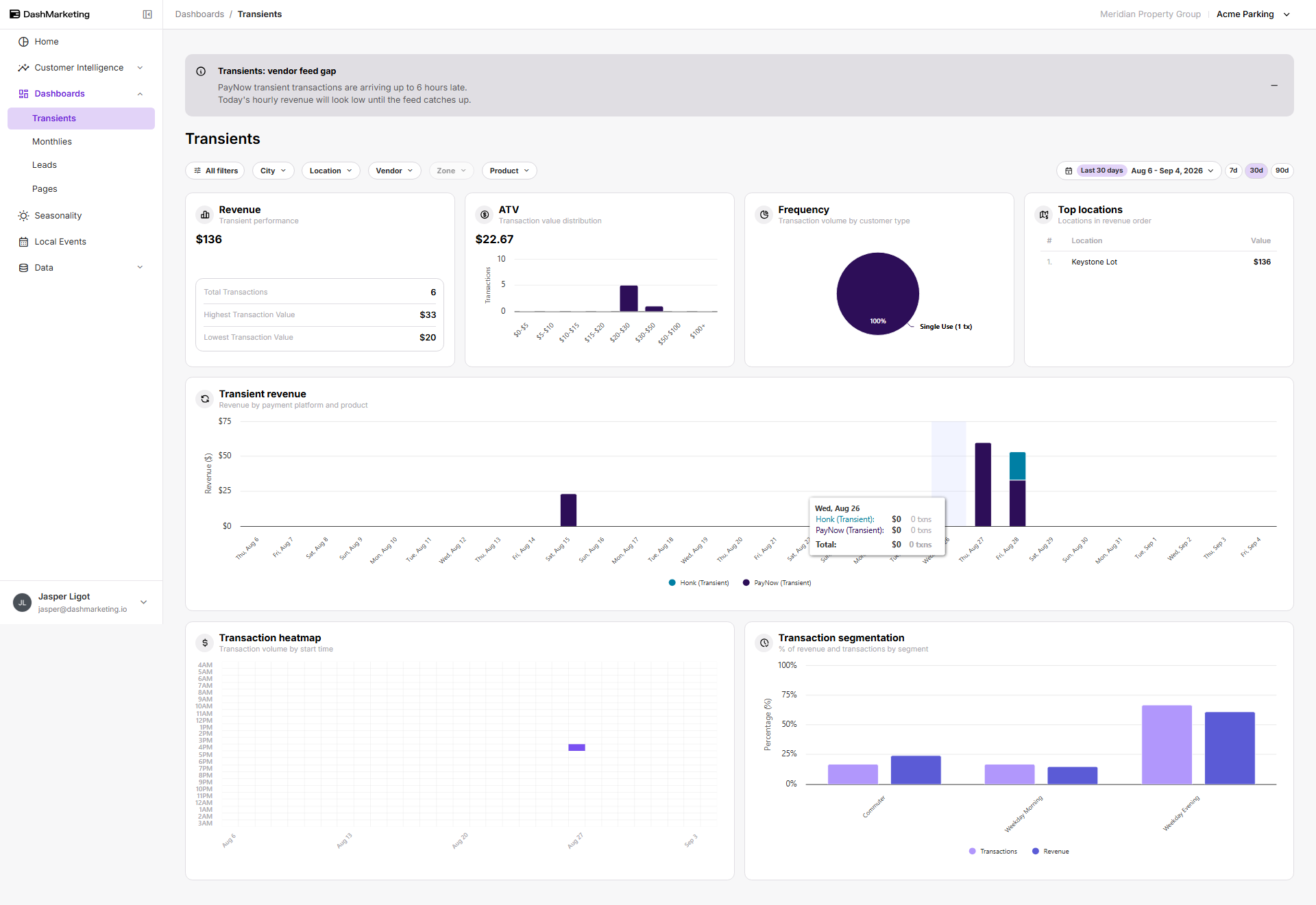 📸 Screenshot needed — client-view-disclaimer-banner.png Client view with a dashboard-specific disclaimer visible — the Transients screen is a good one, since its banner differs from Home's. Call out: the banner, and the – minimise control on the right.
Clients can minimise a banner. They can't dismiss or edit it.
See the Disclaimers guide for the full model.
What they still control
A client user isn't locked out of everything. They can:
Change the date range and month on any dashboard
Filter by city and location within their own portfolio
Build and save audiences (subject to their role)
Run and download exports
Manage their own profile and password via the account menu at the bottom of the sidebar
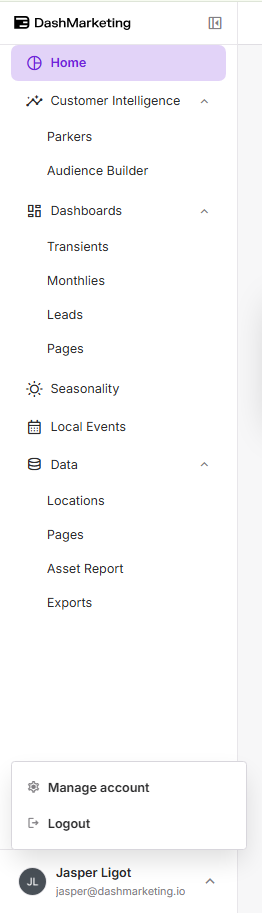
📸 Screenshot needed — client-account-menu.png Client view with the account menu open at the bottom of the sidebar, showing Manage account and Logout.
Next
Client view page reference — what's on each screen
Previewing with View as Client — see it for yourself
Was this page helpful?