
View as client
Last updated September 8, 2026
View as Client switches your session into the client view without you needing their password. You see the app as they see it — same navigation, same scoping, same disclaimers.
Use it before you send an invite, and use it whenever a client tells you something looks wrong.
Entering
Settings → Clients → the person icon on the client's row ("View the app as this client").
A confirmation appears: "Switch to a view as [client]? You'll see exactly what this client sees in the app." Confirm, and the app reloads scoped to that client.
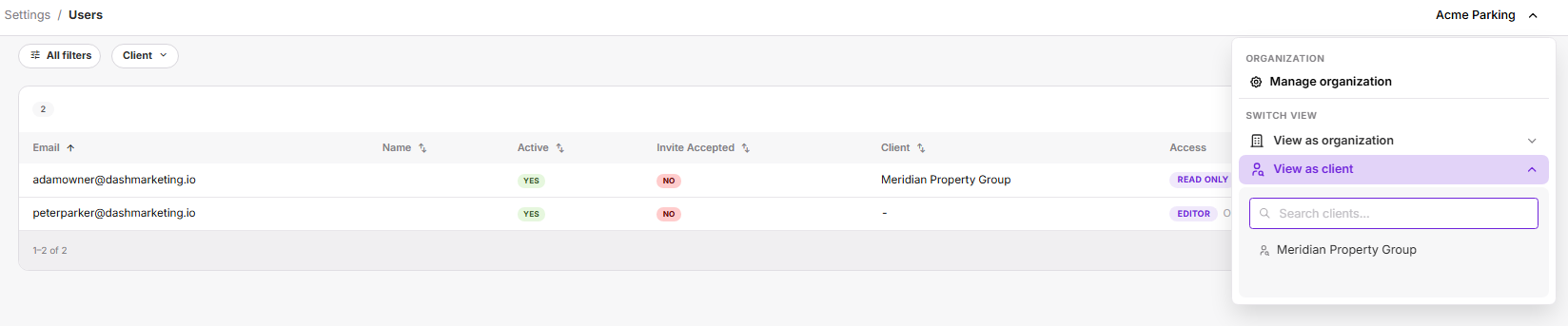 📸 Screenshot needed — view-as-client-confirm.png The View as Client confirmation dialog open over the Clients list. Call out: the person icon on the row that opened it.
You'll know you're in it by three things: the client's name appears beside your organization name in the top bar, the Utilities group disappears from the sidebar, and the Client filter is gone from the filter row.
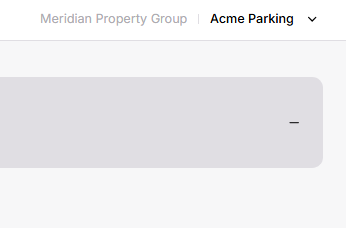 📸 Screenshot needed — view-as-client-topbar.png A tight crop of the top-right bar showing the client name beside the org name. Small image, high value — it's the marker admins need to recognise so they don't mistake the client view for a broken account.
Exiting
Open the organization menu in the top bar (your org name). Under Switch View, expand View as client — the client you're currently viewing is listed with an Exit × chip. Click it.
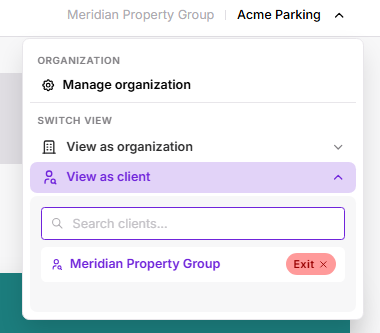 📸 Screenshot needed — view-as-client-exit.png The organization menu open with View as client expanded, showing the current client and its Exit × chip. Call out: the Exit chip. This is the least discoverable control in the flow and the one support gets asked about.
The same menu also holds View as organization, which is how super admins move between organizations. Its Exit chip drops you out of the organization impersonation entirely — a different action. Take care not to click the wrong one.
What this is good for
Before you send an invite. Two minutes here saves a first-day support ticket. Confirm:
Home shows real numbers, not zeroes — if it's all zeroes, the client has no locations attached
The locations listed under Data → Locations are the right ones, and only those
Any disclaimer you've set actually appears on the dashboards you expect
The Asset Report reads sensibly for their portfolio
When a client reports a problem. Reproduce it in their view first. Most "the numbers are wrong" reports resolve to a location that hasn't been attached, or a date range the client didn't notice was set.
What it does not test
This is the limitation worth knowing, because it's easy to be falsely reassured.
View as Client mirrors client scoping. It does not simulate a role.
You're still you — an org user with your own permissions — looking at a client-scoped view. A real client user also has a role (Editor, Read Only, or Analyst) and possibly location-level grants that narrow things further. Those differences don't show up here.
So View as Client will not tell you:
whether an Analyst client user can see the account names on Monthlies
whether a Read Only client user can save an audience
what a user with grants on two of six locations actually sees
For those, test with a real test login on the role in question. If you support clients on more than one role, it's worth keeping a permanent test user per role rather than reasoning about it.
⚠️ Open question for this page: confirm whether View as Client applies a default role at all, or grants your own effective permissions inside the client scope. The answer changes how strongly this warning needs to be worded — check with engineering before publishing.
Related
Was this page helpful?